2026 product handbook

Complete EdRAS user guide

A detailed, screenshot-based handbook designed for admin teams, teachers, support staff, parents, and students. It is now aligned to the latest interface and prepared for on-screen onboarding as well as PDF sharing and hard-copy printing.

Back to homepage

Roles covered

6

Feature areas

10

Real screenshots

27

Print format

A4 PDF

How to use this guide

  1. 1. Start with the role playbook that matches your login.
  2. 2. Open the relevant feature section and follow the numbered workflow.
  3. 3. Compare the live screenshots with your current screen before editing data.
  4. 4. Use the print action to share this as a PDF or hard copy.

What makes it complete

  • • Covers onboarding, academics, communication, families, staffing, and finance.
  • • Uses collapsible sections for quick scanning and deeper study.
  • • Includes real modal and profile screenshots for accurate training.
  • • Works well for training sessions, support desks, and printed handbooks.

PDF sharing note

Use the print button and choose Save as PDF. The guide is formatted for A4 pages and hides non-essential buttons during printing for a cleaner hard copy.

Quick jump

By user type

Role-based quick start playbooks

Each role sees a familiar layout with different permissions. Use the notes below to identify the most useful screens, daily habits, and safe operating patterns.

Role playbook

Admin

Full control

Own setup, configuration, admissions, staffing, communication, and high-level monitoring.

Quick start

  • Open Dashboard first and review counts, alerts, pending fees, and announcements.
  • Maintain master data in Students, Teachers, Parents, Staff, Classes, and Subjects.
  • Use Academic Planner, Timetable, Holidays, and Announcements to keep the school calendar accurate.
  • Check Payments and Fee Structure regularly before issuing receipts or reports.

Best practices

  • Verify class and section before saving records.
  • Keep contact details and roles updated.
  • Publish official announcements from one source of truth.

Role playbook

Manager

Operations

Oversee daily operations, family support, billing follow-up, and academic coordination.

Quick start

  • Use the Dashboard to review school health at a glance.
  • Monitor fees, parent support, attendance exceptions, and holidays.
  • Coordinate with teachers on routines, subjects, and announcements.
  • Keep communication concise and audience-specific.

Best practices

  • Resolve parent and student issues from profile pages.
  • Reconcile payment status before confirming receipt actions.
  • Use filters before editing large data tables.

Role playbook

Teacher

Academics

Manage classes, routines, attendance, grades, and day-to-day learner communication.

Quick start

  • Open timetable or academic planner to confirm today’s classes.
  • Record attendance early and update grades after every assessment.
  • Check student profiles and family data when escalation is needed.
  • Use announcements and messages for class-level communication.

Best practices

  • Review subject and section before entering marks.
  • Keep remarks useful and concise.
  • Confirm the correct exam term before publishing results.

Role playbook

Non-Teaching Staff

Support desk

Support admissions, data maintenance, office operations, and student-family help desks.

Quick start

  • Use card or list views to locate student, parent, and staff records quickly.
  • Handle phone, message, and email actions from profile or list screens.
  • Update approved information only after verification.
  • Escalate billing or academic changes to managers or admin when required.

Best practices

  • Double-check names, IDs, and phone numbers.
  • Keep department and shift data accurate.
  • Use the profile pages for a full record review before editing.

Role playbook

Parent

Family portal

Track children, attendance, grades, announcements, and fee status from one place.

Quick start

  • Review the linked child profile after login.
  • Check attendance percentage, fee details, and announcements every week.
  • Use contact actions for school communication when clarification is needed.
  • Follow the holiday and timetable views to plan transport and study routine.

Best practices

  • Keep phone and email current.
  • Use official message channels for school support.
  • Review printed receipts and marksheets carefully.

Role playbook

Student

Self-service

Stay on top of routine, attendance, announcements, exam performance, and class expectations.

Quick start

  • Open the dashboard or timetable each morning.
  • Check attendance and grades after updates are published.
  • Read school and class announcements without delay.
  • Ask for help early if a record looks incorrect.

Best practices

  • Use the portal daily.
  • Cross-check exam dates and holidays in advance.
  • Keep profile and contact details correct where editing is allowed.

Feature handbook

Detailed module walkthroughs

The sections below are fully visual and intentionally more detailed so new users, support teams, and school leaders can learn the product confidently without guesswork.

Overview

Dashboard and navigation command center

Audience: All users

Show / hide

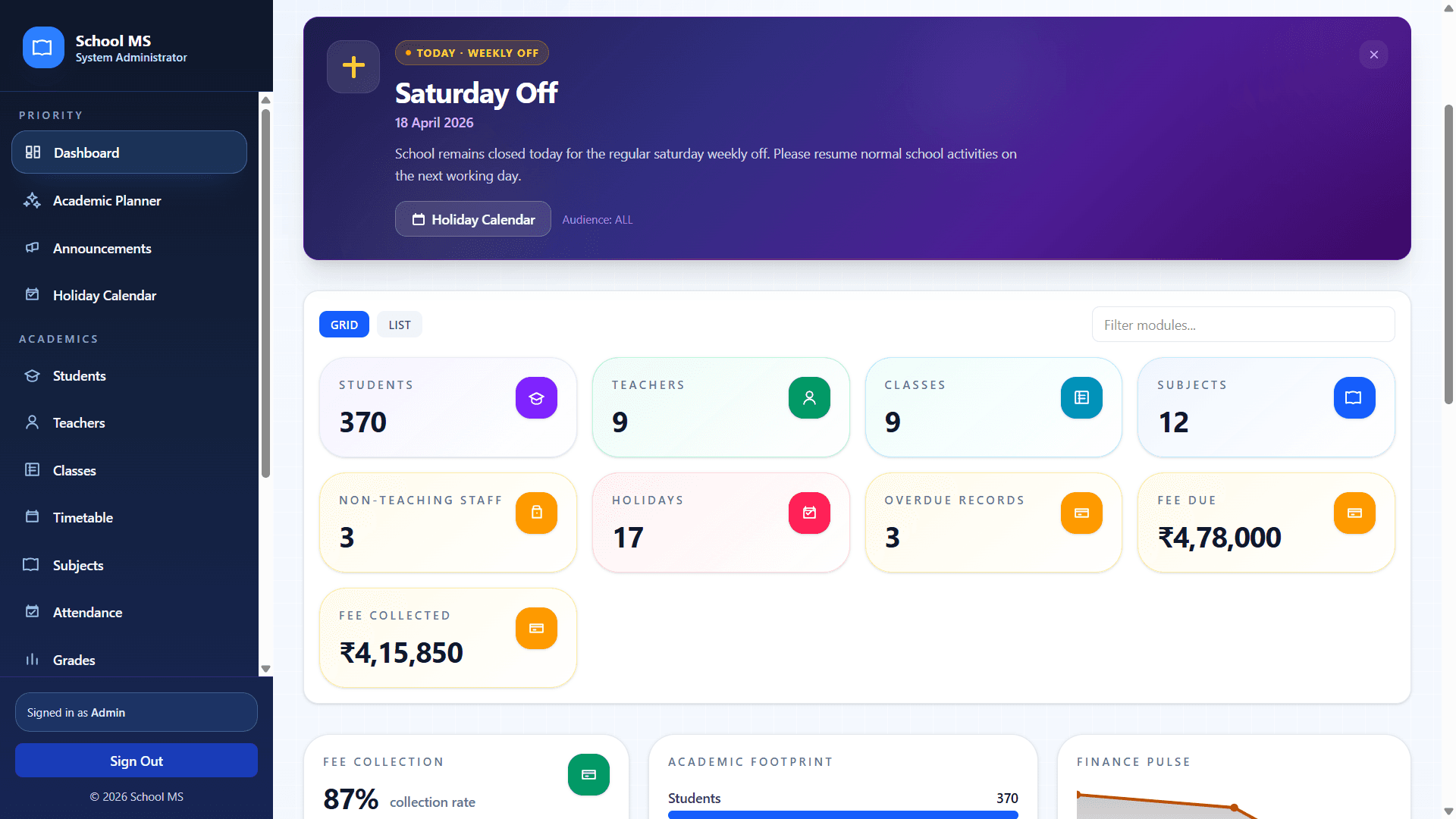
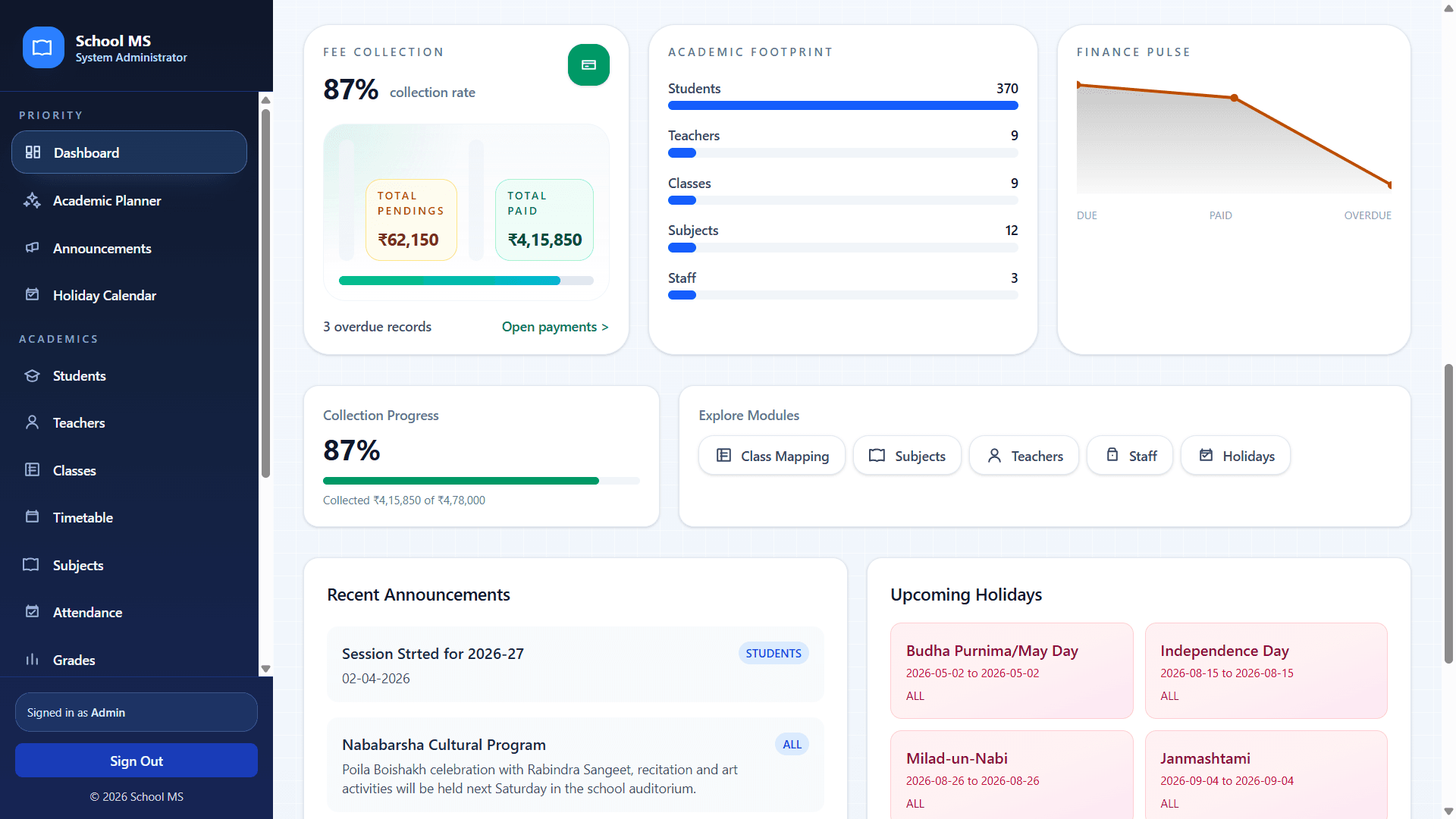
The dashboard is the operational cockpit of EdRAS. It combines role-based sidebar navigation, school-wide alerts, live counters, finance insight, academic footprint, quick shortcuts, recent announcements, and holiday reminders.

Role-based sidebarLive summary cardsQuick shortcutsAnnouncement and holiday visibility

Recommended flow

  1. 1Start every session from the dashboard to understand today’s priority items.
  2. 2Use the left navigation rail to switch between modules such as Students, Teachers, Classes, Timetable, Subjects, Attendance, Grades, Parents, Staff, Payments, and Profile.
  3. 3Read the top alert banner for weekly off, public holidays, or term notices before taking action.
  4. 4Use the summary and insight cards to identify fee collection progress, staffing numbers, and recent academic updates.

Practical tips

  • Admins and managers should review the dashboard at the beginning and end of the day.
  • Teachers and parents can use the same visual pattern to find their reduced role-specific menus quickly.
  • If something feels missing, check the user role and permissions first.

Visual walkthrough

Primary screenshot with supporting screens arranged for easier reading.

2 shots
Dashboard overview
Screen 1UI preview
Top dashboard with summary cards and key navigation.
Dashboard insight cards
Screen 2UI preview
Finance pulse, academic footprint, and latest announcement view.

Academic planning

Academic planner, class hours, breaks, routines, and exam planning

Audience: Admin, Manager, Teacher

Show / hide

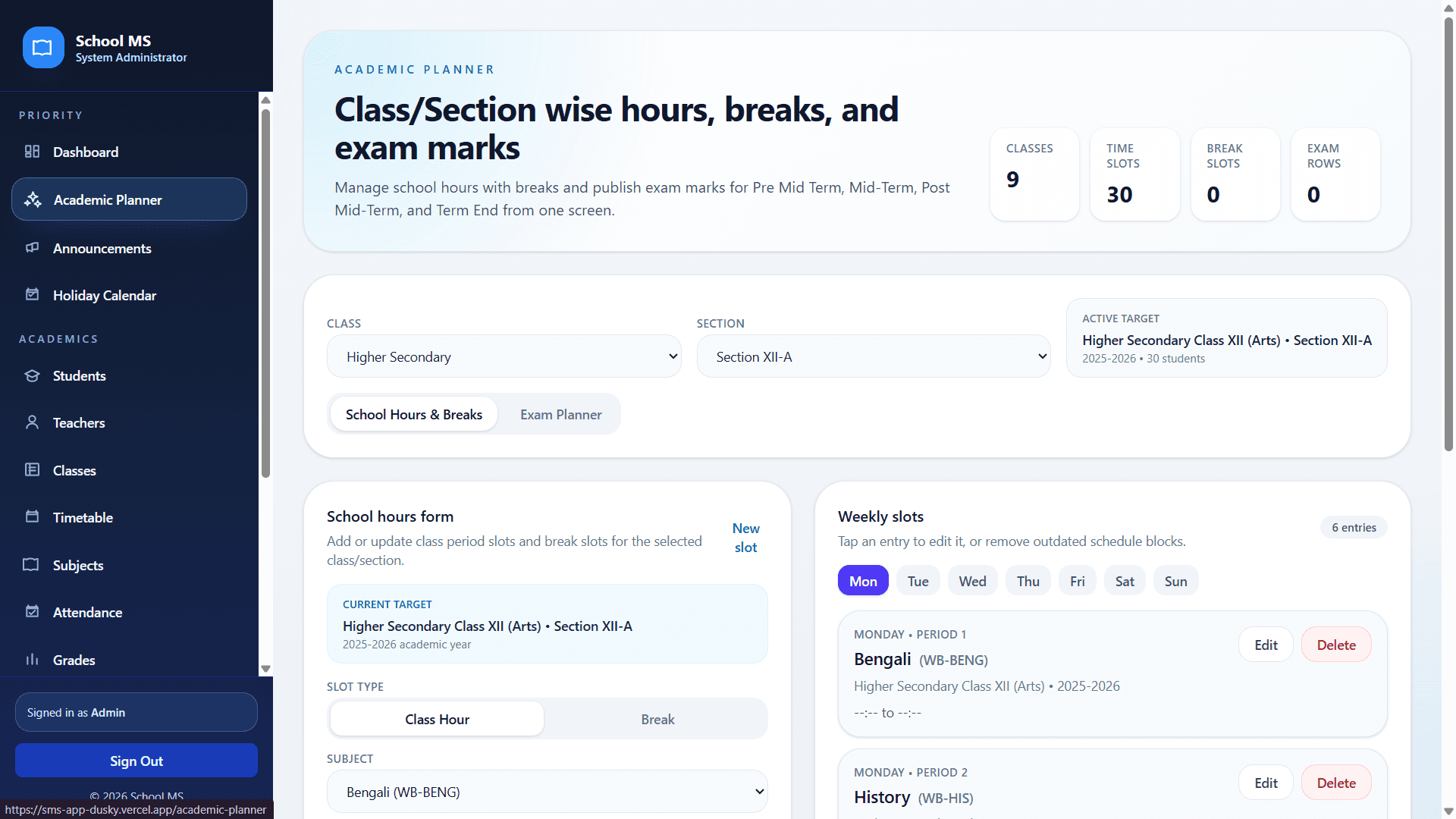
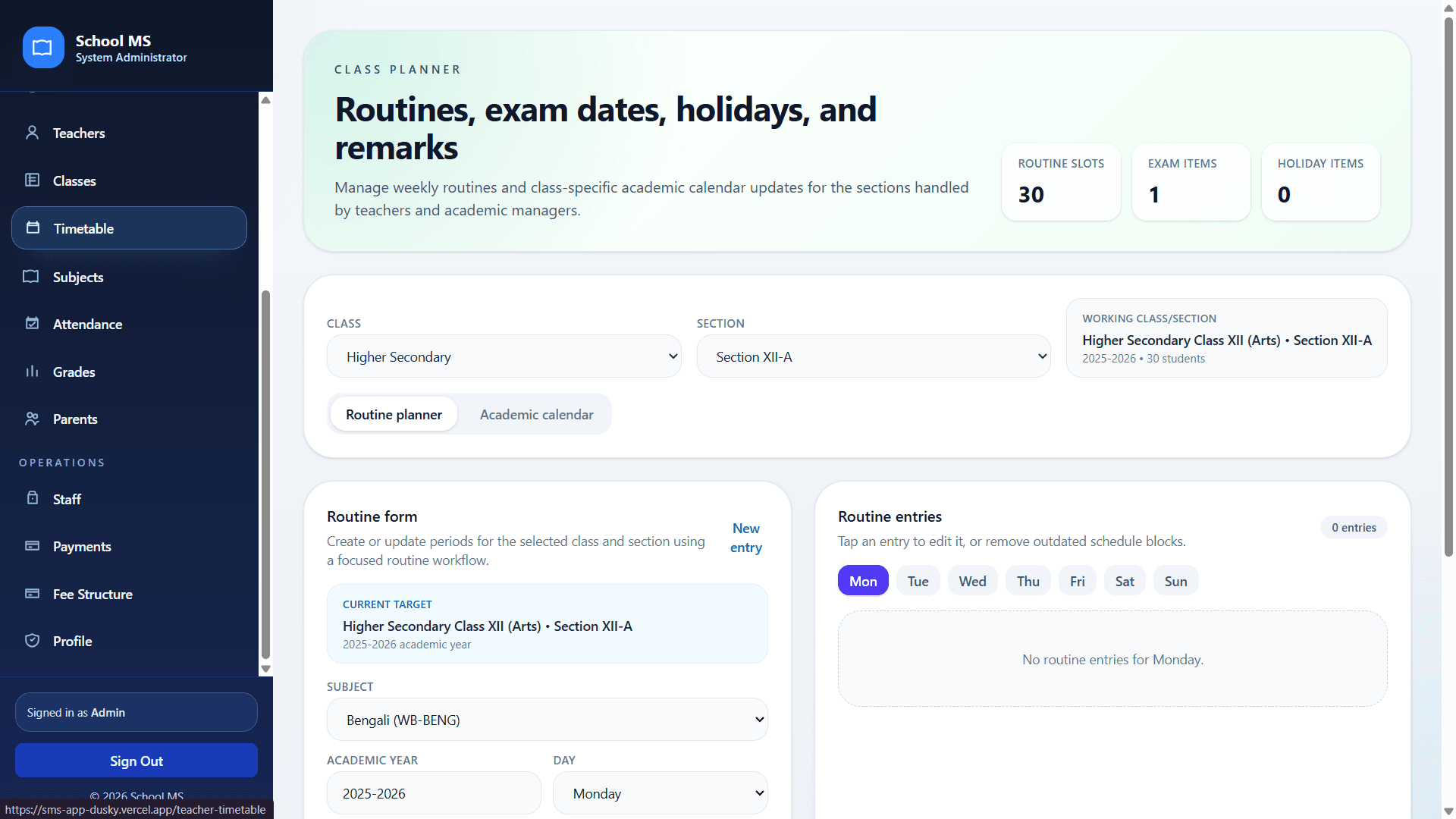
The planning tools allow the school to define class-wise hours, breaks, weekly routine slots, exam items, and section-specific academic schedules from a single modern workspace.

Class and section filtersRoutine planner tabsWeekly slot managementExam and break configuration

Recommended flow

  1. 1Choose the correct class and section before entering any slot or exam data.
  2. 2Use the School Hours and Breaks or Routine Planner tabs to switch between schedule design modes.
  3. 3Add or edit entries for each day and period so that teachers and students get the correct routine.
  4. 4Revisit the selected target card to confirm you are updating the intended academic year and section.

Practical tips

  • Set up hours and breaks before adding detailed routine items.
  • Use one section at a time to avoid scheduling overlap.
  • Update exam plans before term assessments begin so grade workflows stay aligned.

Visual walkthrough

Primary screenshot with supporting screens arranged for easier reading.

3 shots
Academic planner screen
Screen 1UI preview
School hours, breaks, and exam marks planner.
Routine planner screen
Screen 2UI preview
Routine form and daily timetable entry management.
Routine planner for primary class
Screen 3UI preview
Section-based class planner with weekday tabs and current target details.

Admissions and records

Student admission, records, profile access, and fee context

Audience: Admin, Manager, Staff, Parent

Show / hide

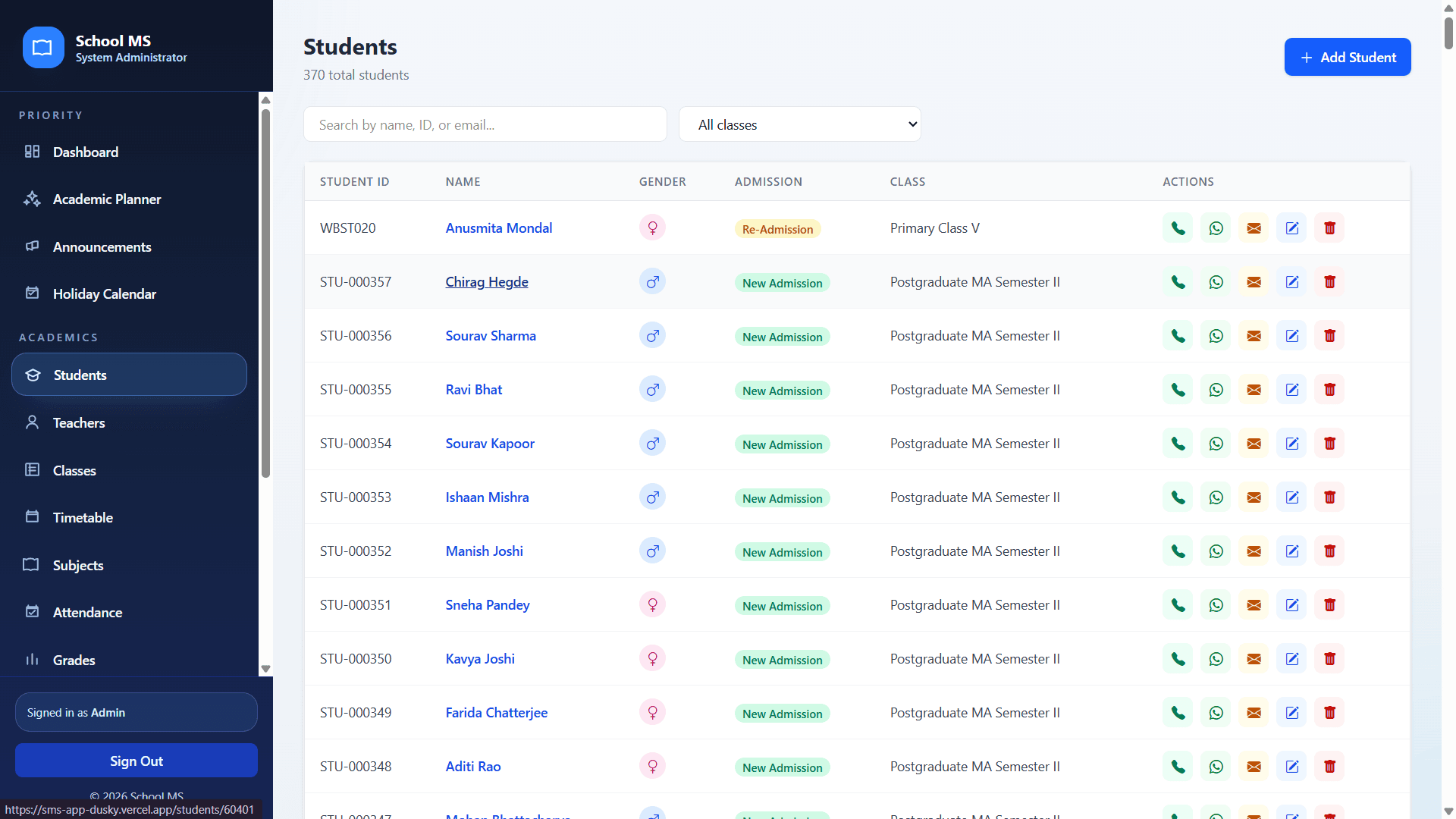
Student workflows cover search, list management, full profile review, family linkage, marksheet printing, receipts, attendance visibility, and session-level fee management.

Search and filterAdmission status badgeProfile card actionsFamily and billing side panels

Recommended flow

  1. 1Use the Students table to search by name, ID, class, or other identifying details.
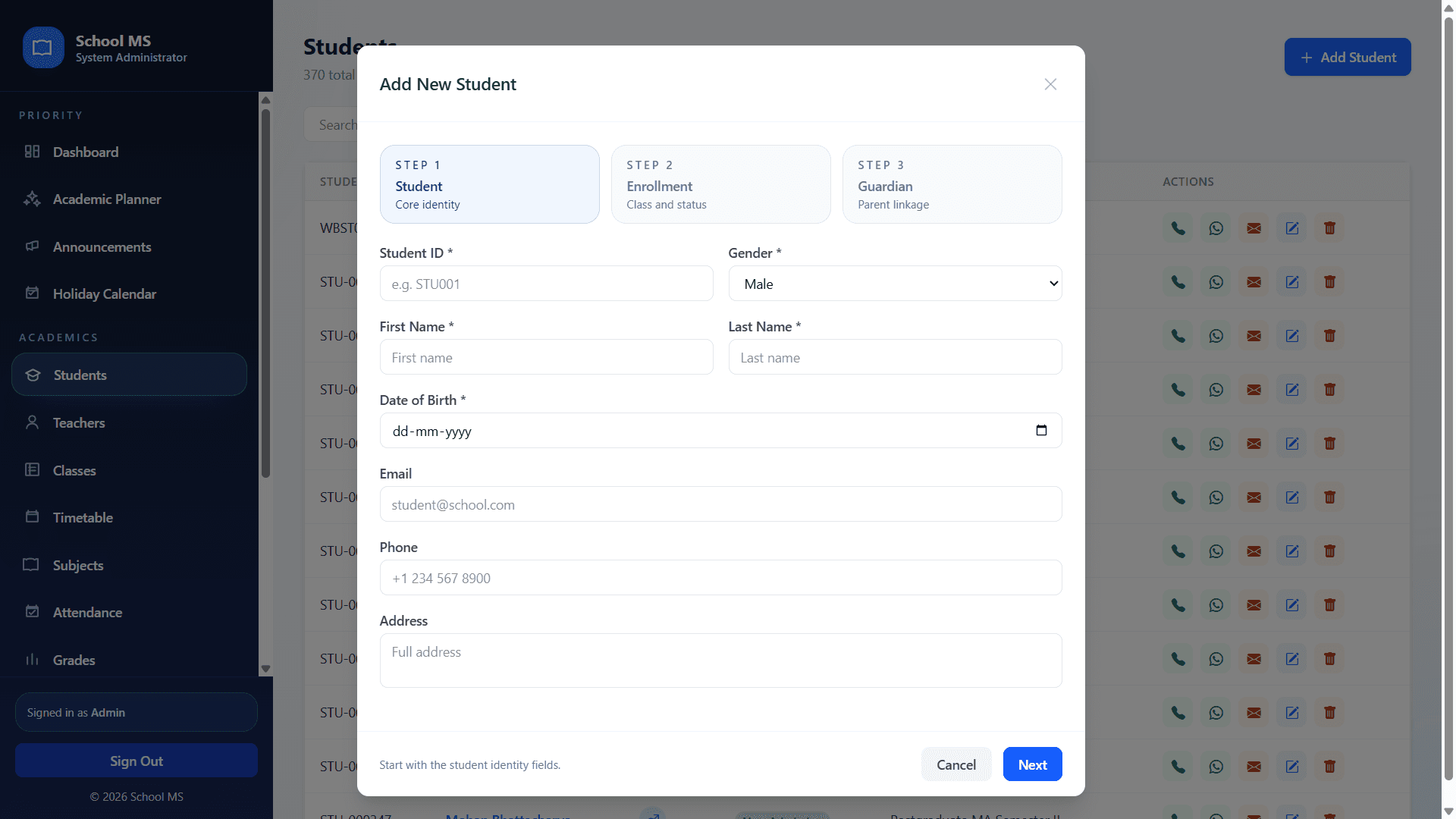
  2. 2Open Add Student to complete the guided three-step process for student identity, enrollment, and guardian linkage.
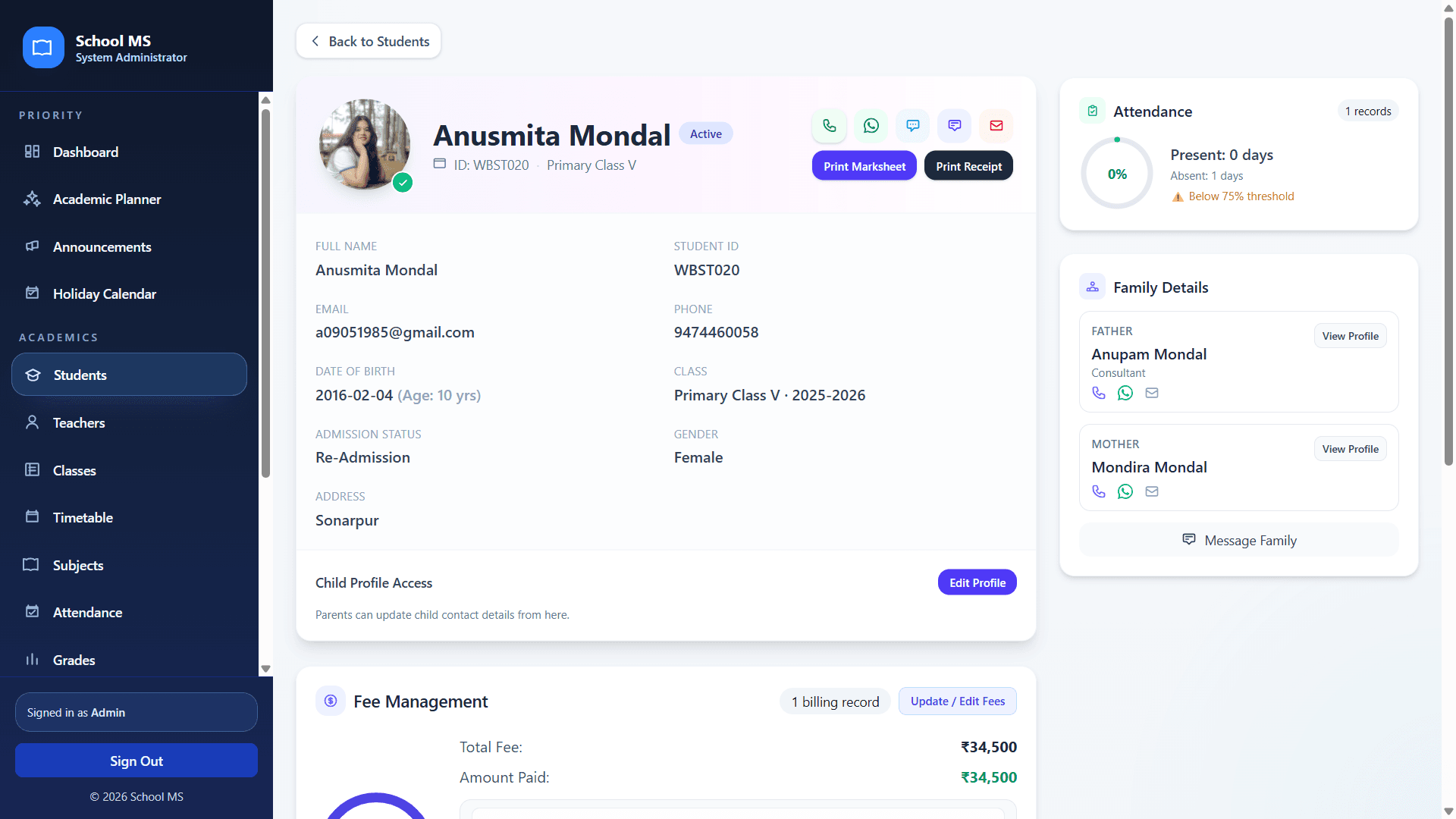
  3. 3From the student profile page, review attendance, linked family details, payment status, and available actions such as print marksheet or print receipt.
  4. 4Use the edit button only after confirming the admission status, class allocation, and parent linkage.

Practical tips

  • The profile screen is the best place to validate whether school, family, and finance records are aligned.
  • Use the print actions when parents require a hard copy.
  • Pay close attention to re-admission labels when updating returning students.

Visual walkthrough

Primary screenshot with supporting screens arranged for easier reading.

3 shots
Students list page
Screen 1UI preview
Student list with quick action icons and class filters.
Add new student modal
Screen 2UI preview
Three-step guided student intake workflow.
Student profile page
Screen 3UI preview
Full student profile with attendance, family details, and fee management.

Faculty management

Teacher onboarding, role labels, subject load, and profile review

Audience: Admin, Manager

Show / hide

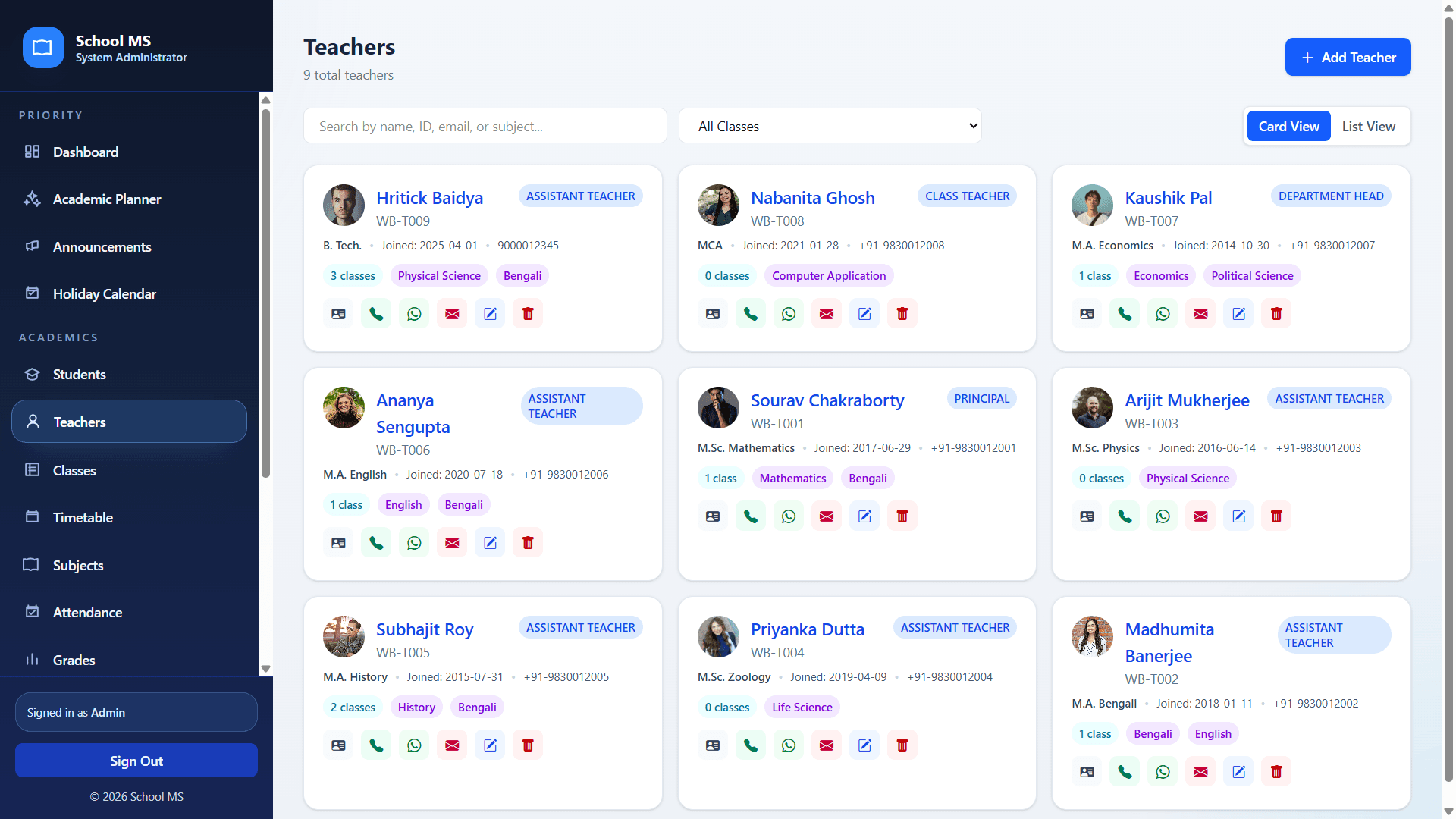
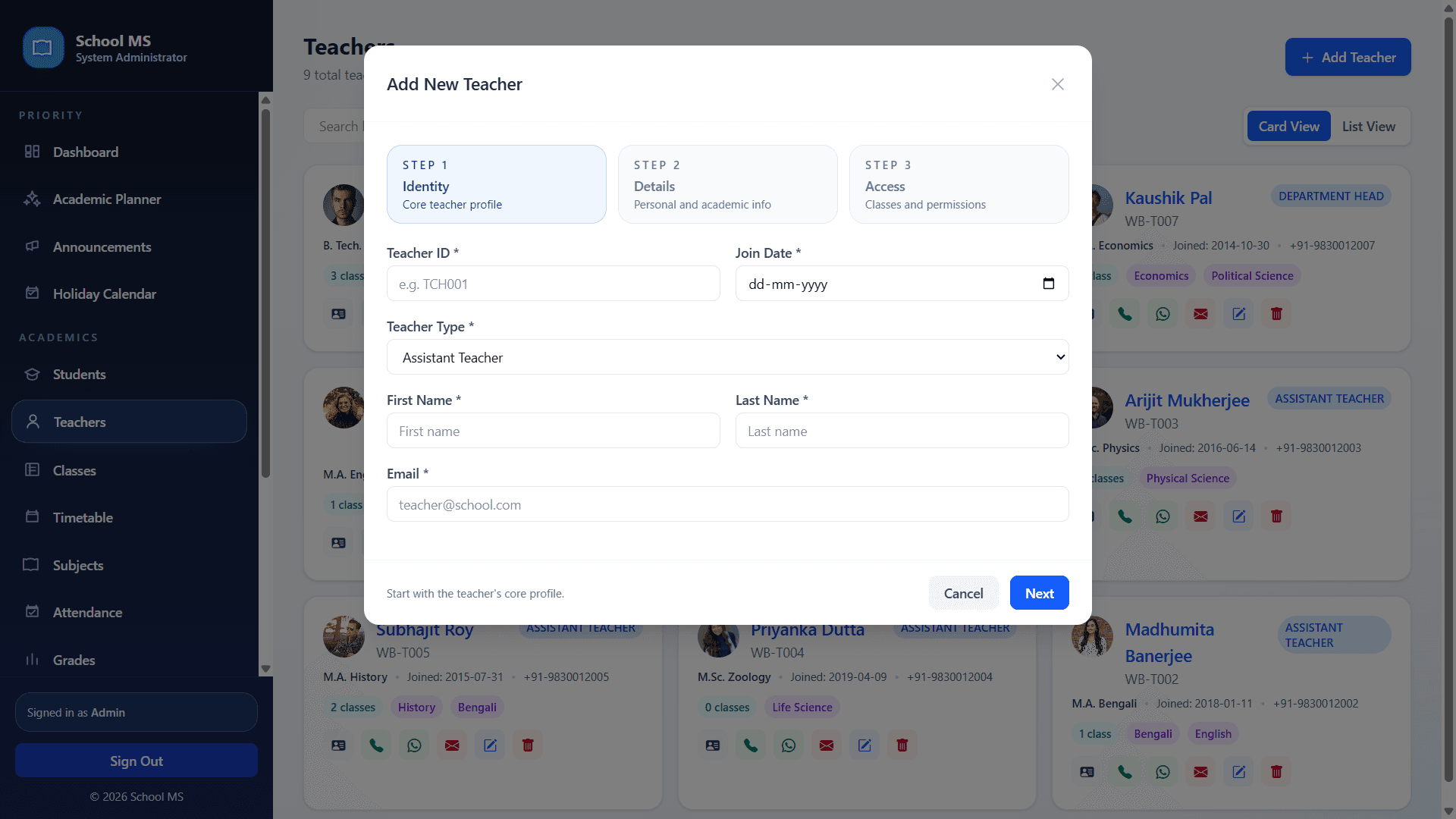
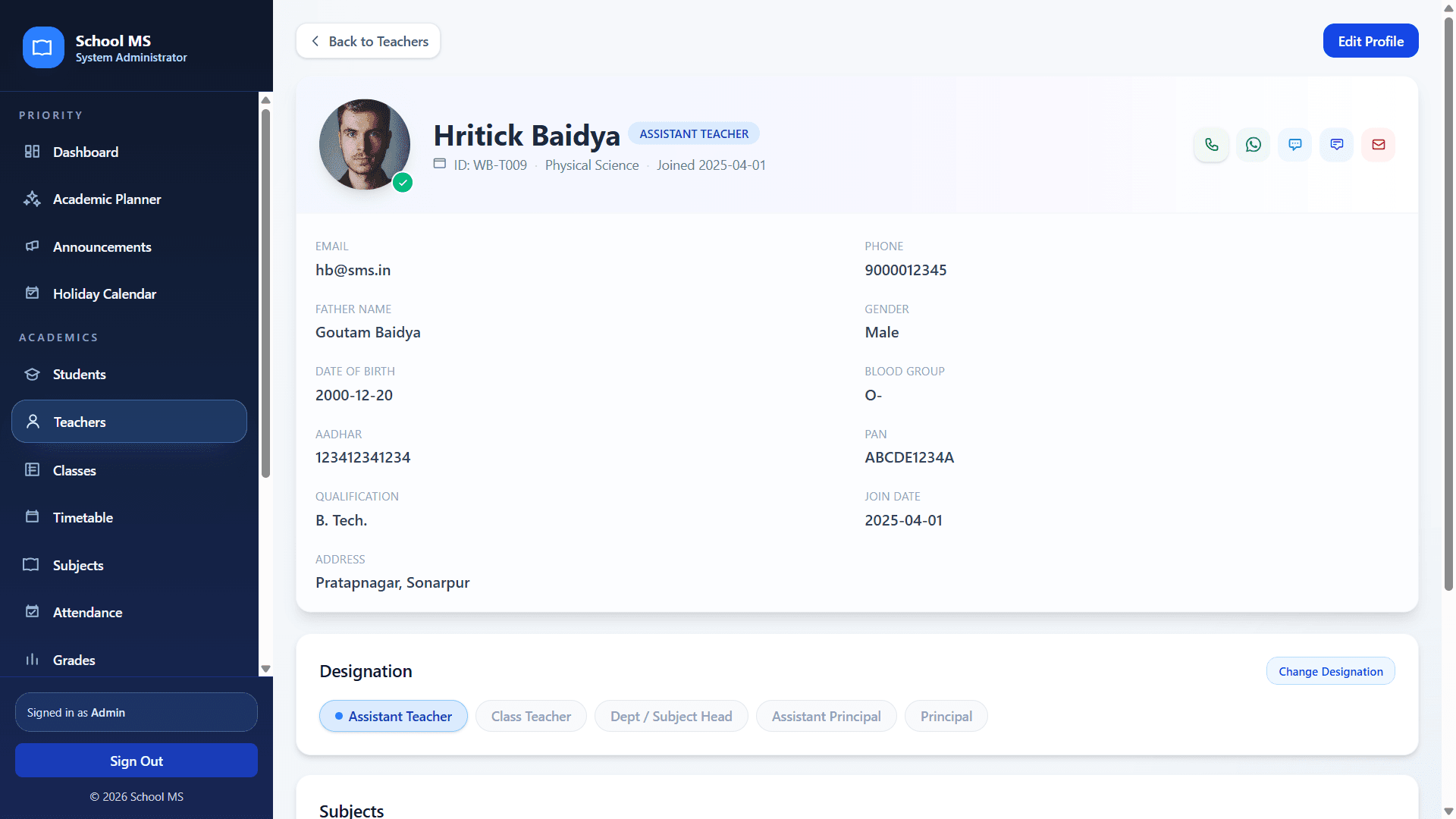
Teacher screens support card or list browsing, profile management, subject assignment visibility, designation changes, and controlled access setup through a structured entry modal.

Card and list toggleDesignation chipsCommunication actionsThree-step access flow

Recommended flow

  1. 1Open Teachers and search by name, subject, or ID to find a faculty member quickly.
  2. 2Review teacher cards for labels such as Assistant Teacher, Class Teacher, Subject Head, or Principal.
  3. 3Use Add Teacher to complete identity, details, and access settings in the correct order.
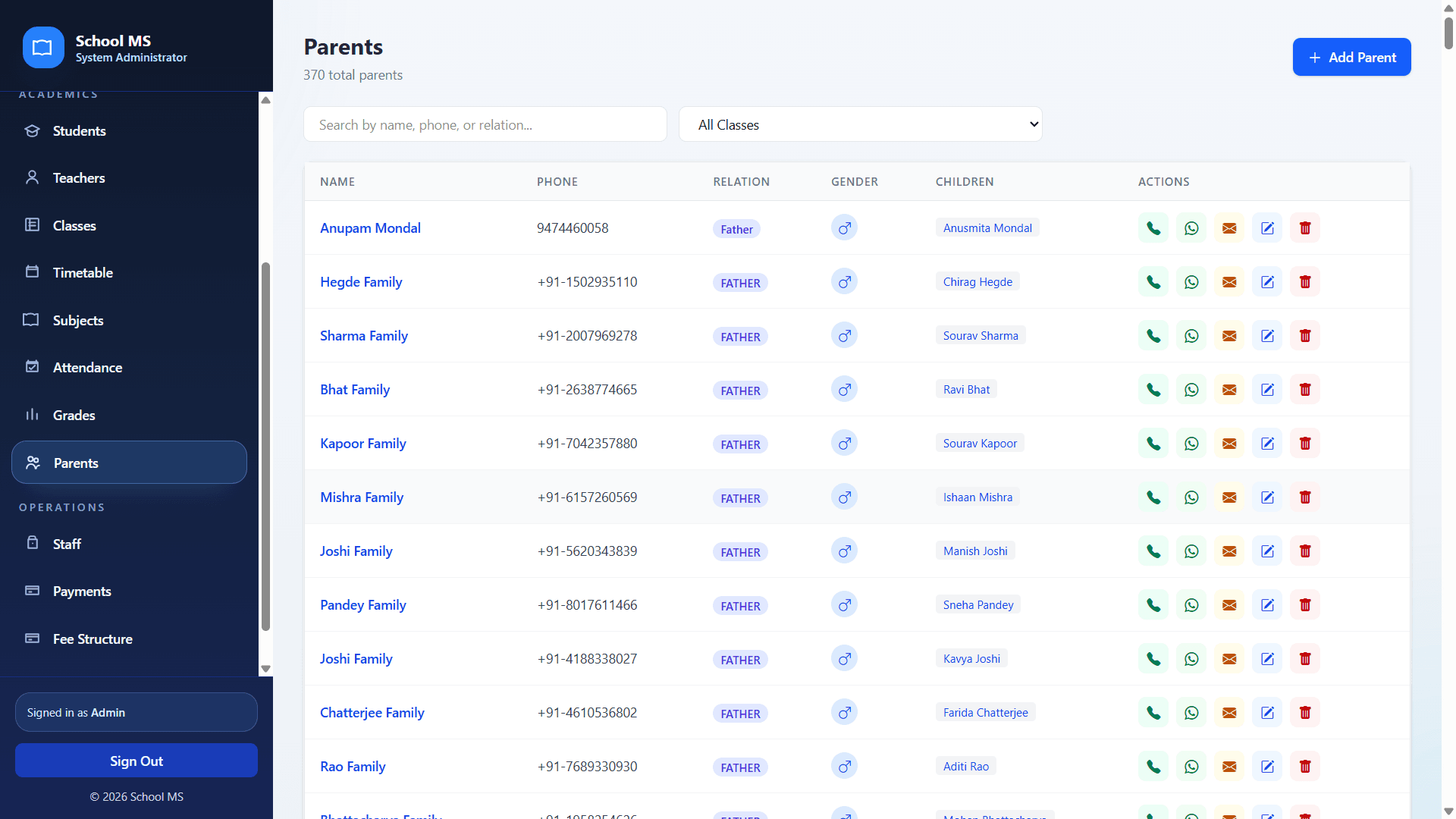
  4. 4Open the teacher profile page when you need a full view of qualification, contact information, designation, and assigned subjects.

Practical tips

  • Confirm subject tags and class load during onboarding.
  • Use the profile page before changing designation so decisions are based on complete data.
  • Keep join dates and qualification details clean for HR accuracy.

Visual walkthrough

Primary screenshot with supporting screens arranged for easier reading.

3 shots
Teachers management page
Screen 1UI preview
Teacher directory with role tags and communication shortcuts.
Add teacher modal
Screen 2UI preview
Faculty onboarding workflow with identity, details, and access steps.
Teacher profile page
Screen 3UI preview
Detailed teacher profile with designation, subject, and personal information.

Family management

Parent and guardian records, child linkage, and family support

Audience: Admin, Manager, Staff, Parent

Show / hide

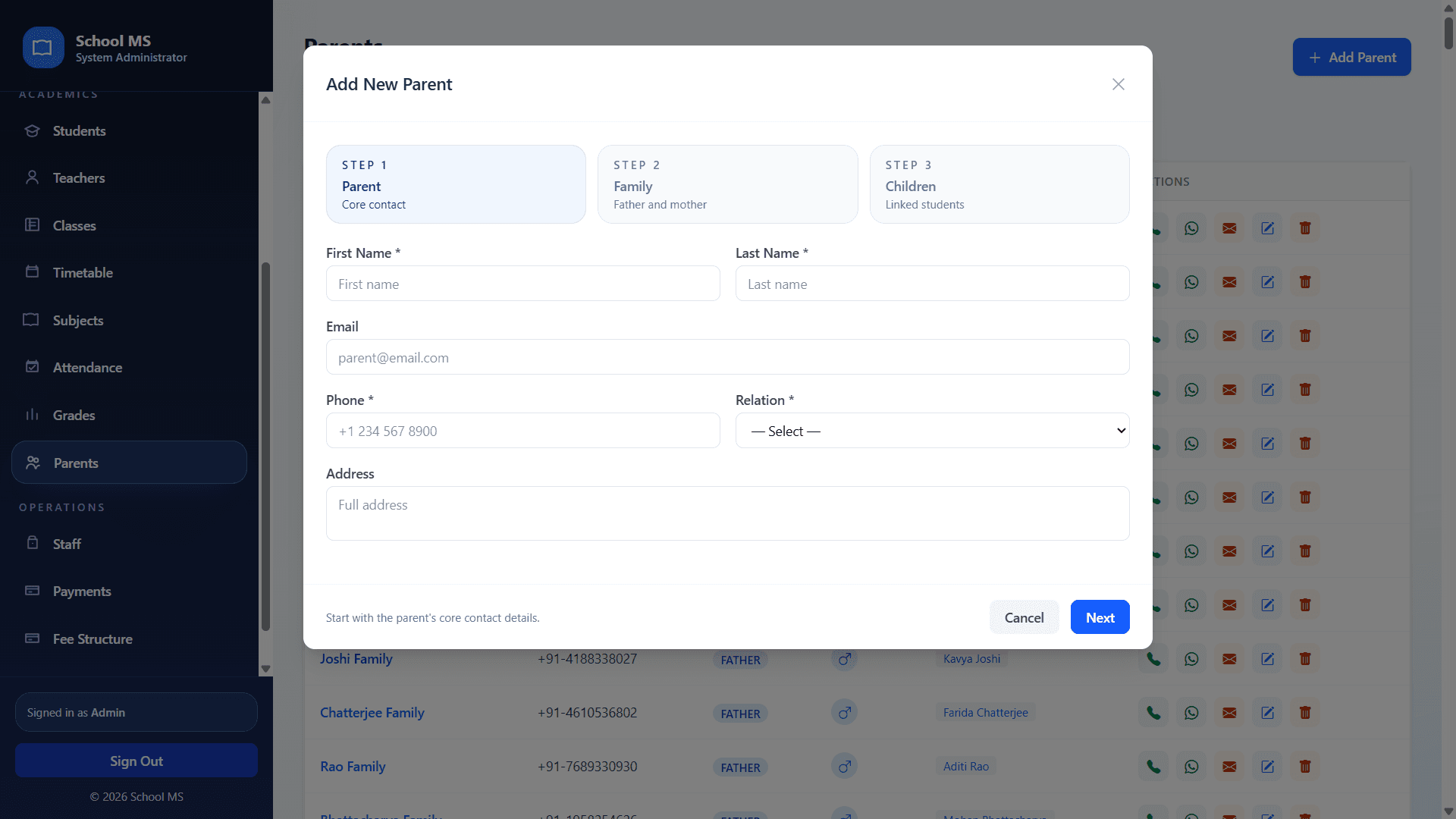
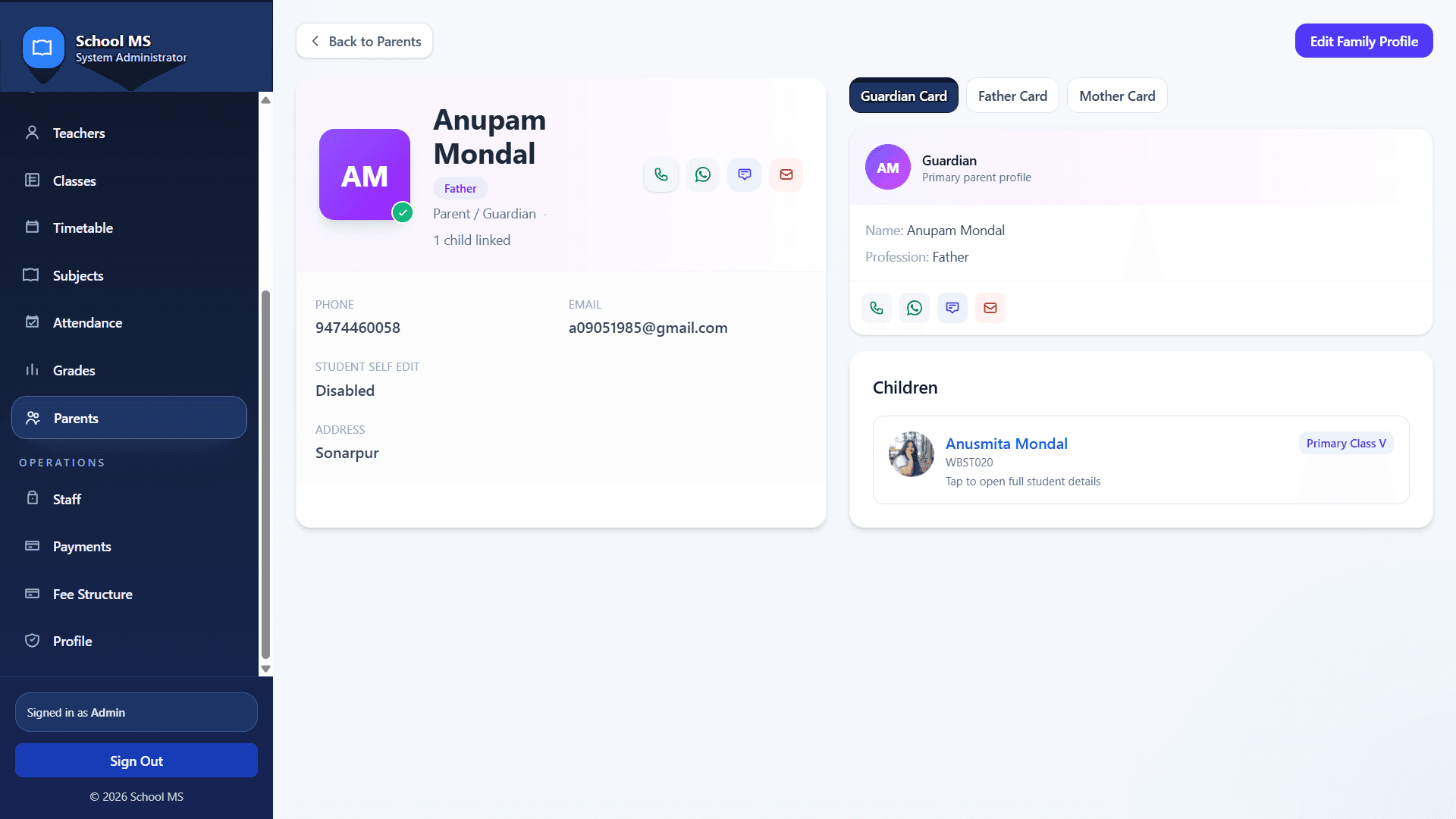
Family records are managed through parent lists, quick support actions, a guided add-parent flow, and detailed guardian profile views showing linked children and communication options.

Search by relation or phoneChild linkageGuardian tabsProfile-level message actions

Recommended flow

  1. 1Open Parents to find a guardian by name, phone number, or relation type.
  2. 2Use Add Parent to enter the core contact, family details, and linked children across the three-step flow.
  3. 3Open the parent profile to review the guardian card, father and mother tabs, contact details, and the child summary.
  4. 4Use the call, message, WhatsApp, or email actions for verified communication only.

Practical tips

  • Keep parent-child linkage accurate to avoid portal mismatches.
  • Use the family profile when admission or fee follow-up requires a full household view.
  • Parents should verify their phone and email so the school can reach them quickly.

Visual walkthrough

Primary screenshot with supporting screens arranged for easier reading.

3 shots
Parents list page
Screen 1UI preview
Parent directory with class filters and action shortcuts.
Add parent modal
Screen 2UI preview
Guided form for contact details, family data, and linked children.
Parent profile page
Screen 3UI preview
Guardian profile with communication actions and linked student card.

Operations support

Non-teaching staff directory, profile maintenance, and office assignments

Audience: Admin, Manager, Staff

Show / hide

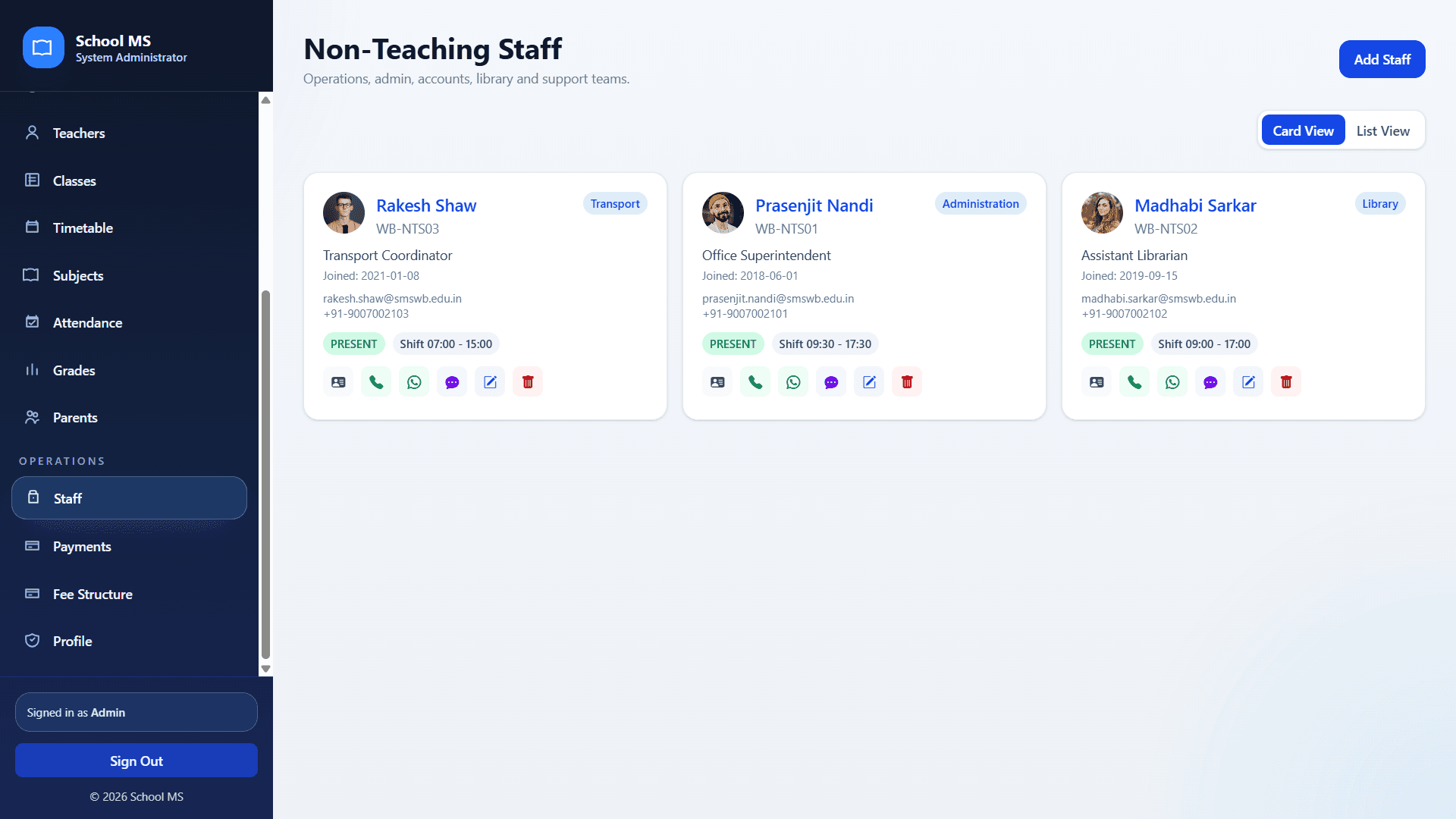
The staff area covers office, transport, administration, accounts, library, and support teams with card/list browsing, shift visibility, profile review, and edit workflows.

Department tagsShift scheduleCard or list modeEdit profile wizard

Recommended flow

  1. 1Open Staff to review active support team members and switch between card view and list view as needed.
  2. 2Use the quick actions row to contact a staff member, message them, or edit the profile.
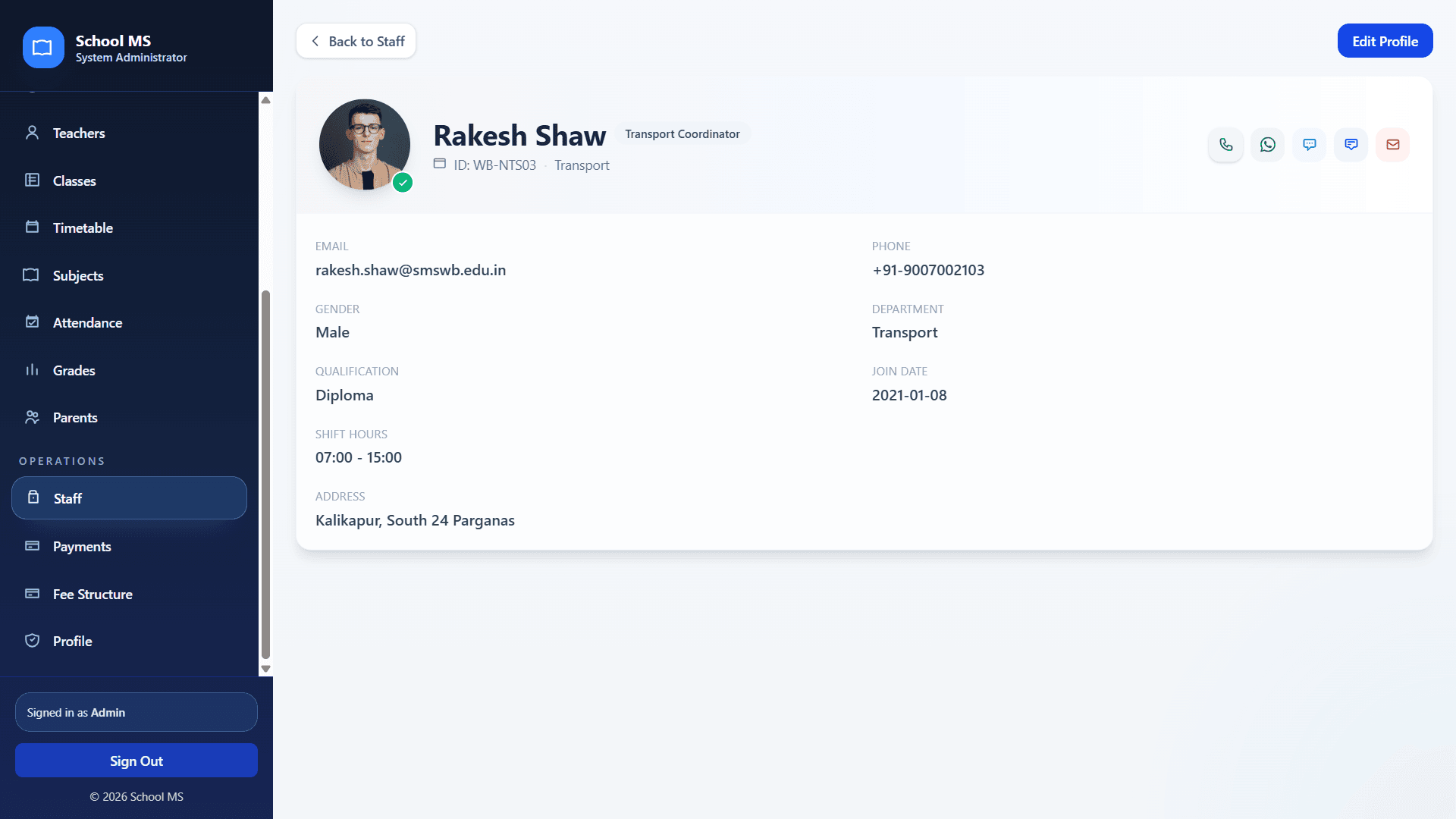
  3. 3Open the detailed profile page for department, shift hours, qualification, address, and join date information.
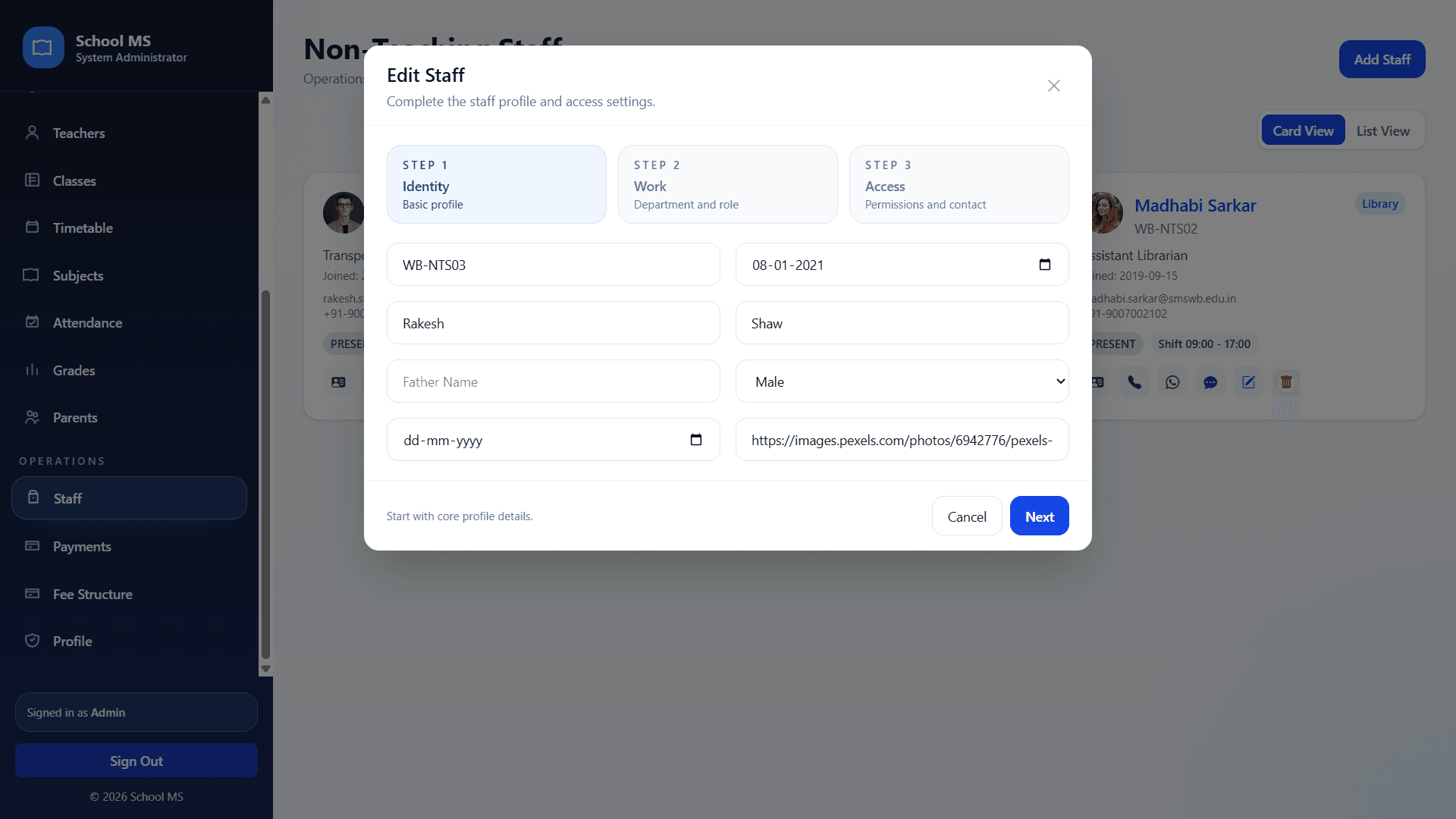
  4. 4Use the edit modal to update identity, work, and access settings in a structured sequence.

Practical tips

  • Keep department and shift records accurate for front office planning.
  • Use profile reviews before editing to avoid duplicate or incorrect updates.
  • This module is especially useful for transport, reception, library, and office management.

Visual walkthrough

Primary screenshot with supporting screens arranged for easier reading.

3 shots
Staff list page
Screen 1UI preview
Non-teaching staff cards with department labels and attendance status.
Edit staff modal
Screen 2UI preview
Structured edit flow for identity, work, and access settings.
Staff profile page
Screen 3UI preview
Detailed staff profile showing department, qualification, and shift hours.

Academic structure

Classes, subjects, teacher mapping, and curriculum setup

Audience: Admin, Manager, Teacher

Show / hide

These screens define the academic structure of the school. They connect classes, sections, primary teachers, assistant teachers, assigned subjects, and descriptive curriculum information.

Class creationTeacher mappingSubject taggingAcademic year structure

Recommended flow

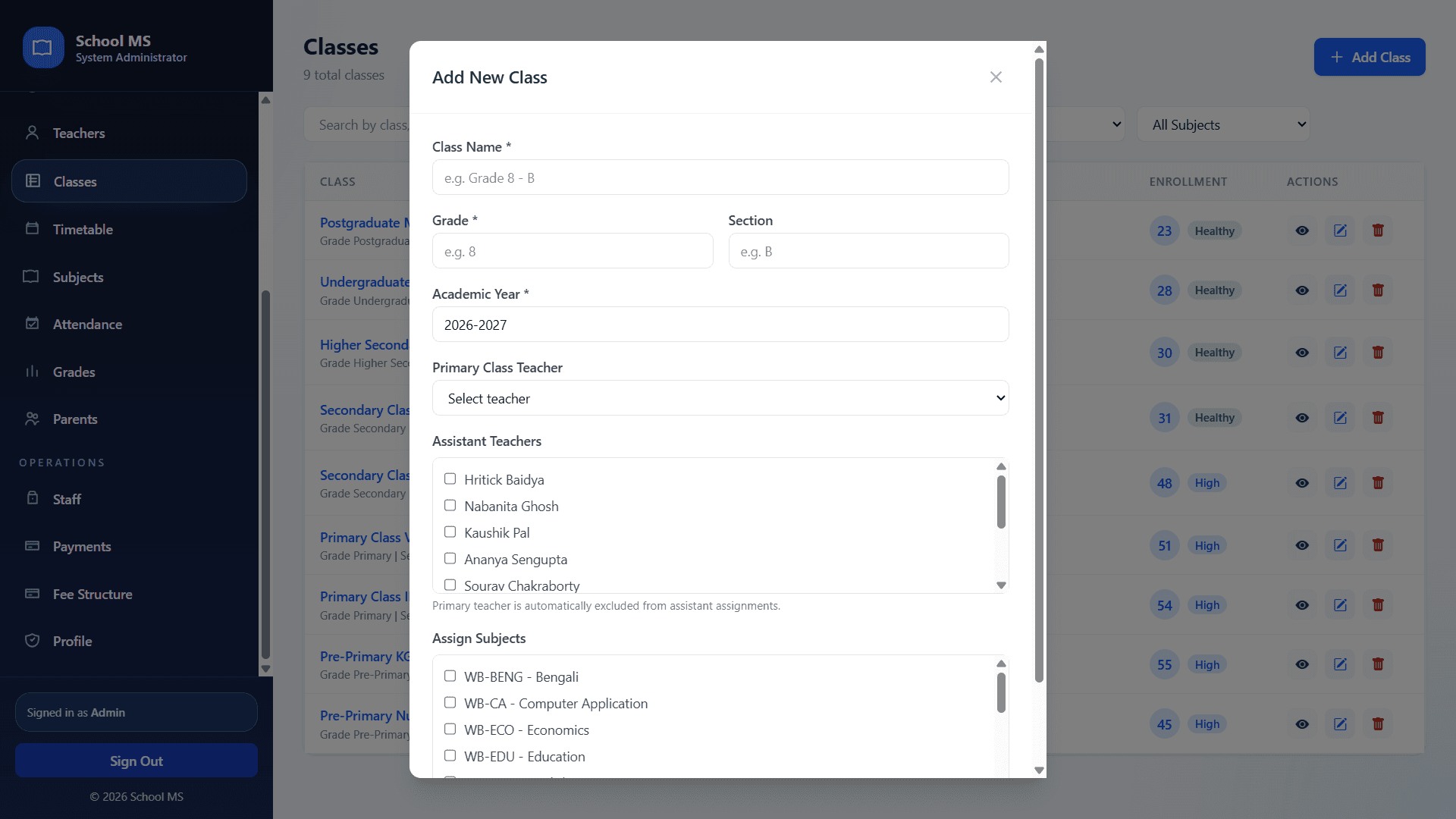
  1. 1Use Add New Class to define class name, grade, section, academic year, primary teacher, assistant teachers, and assigned subjects.
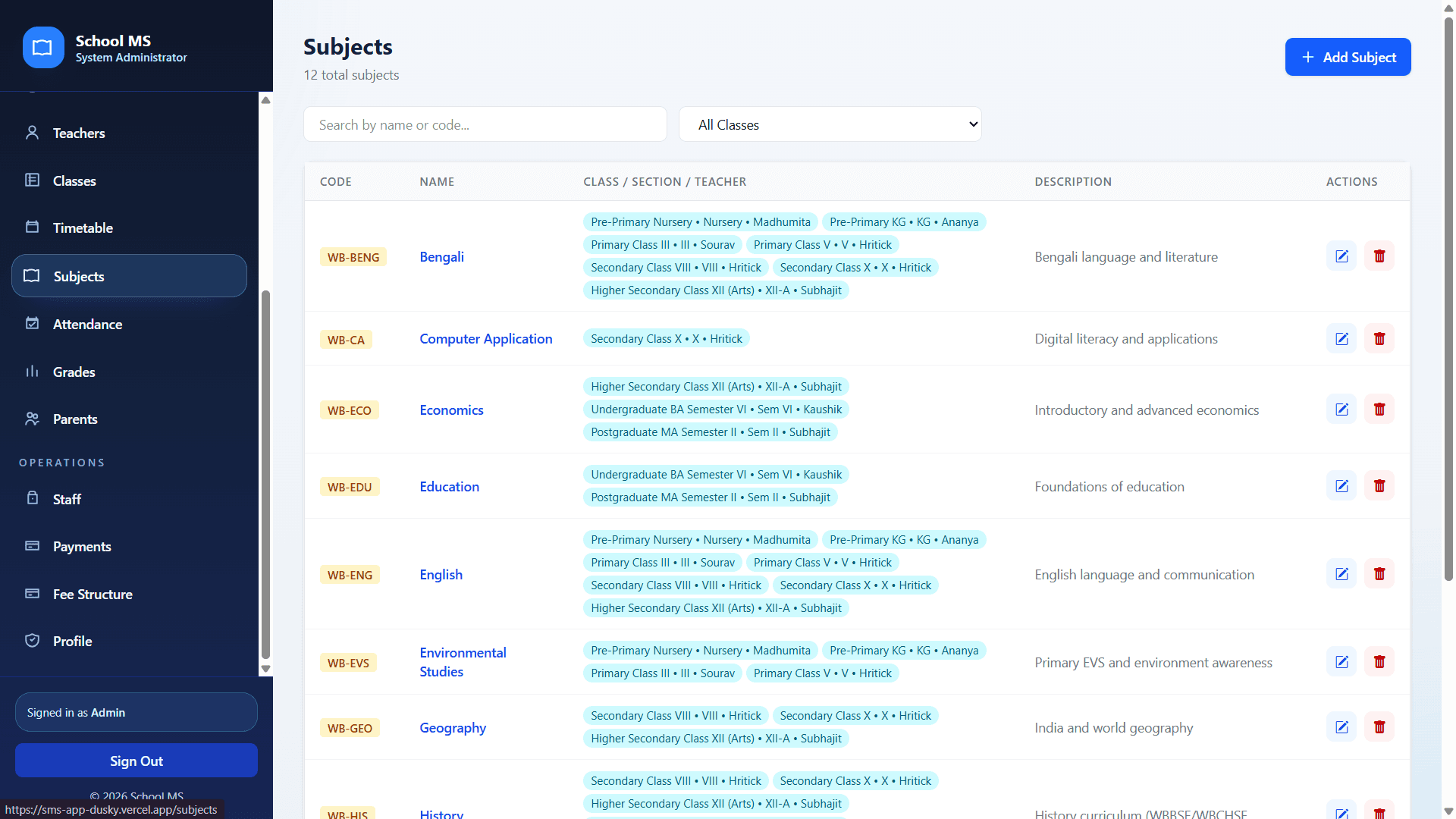
  2. 2Use the Subjects table to review subject codes, descriptions, and class-section-teacher mapping in one view.
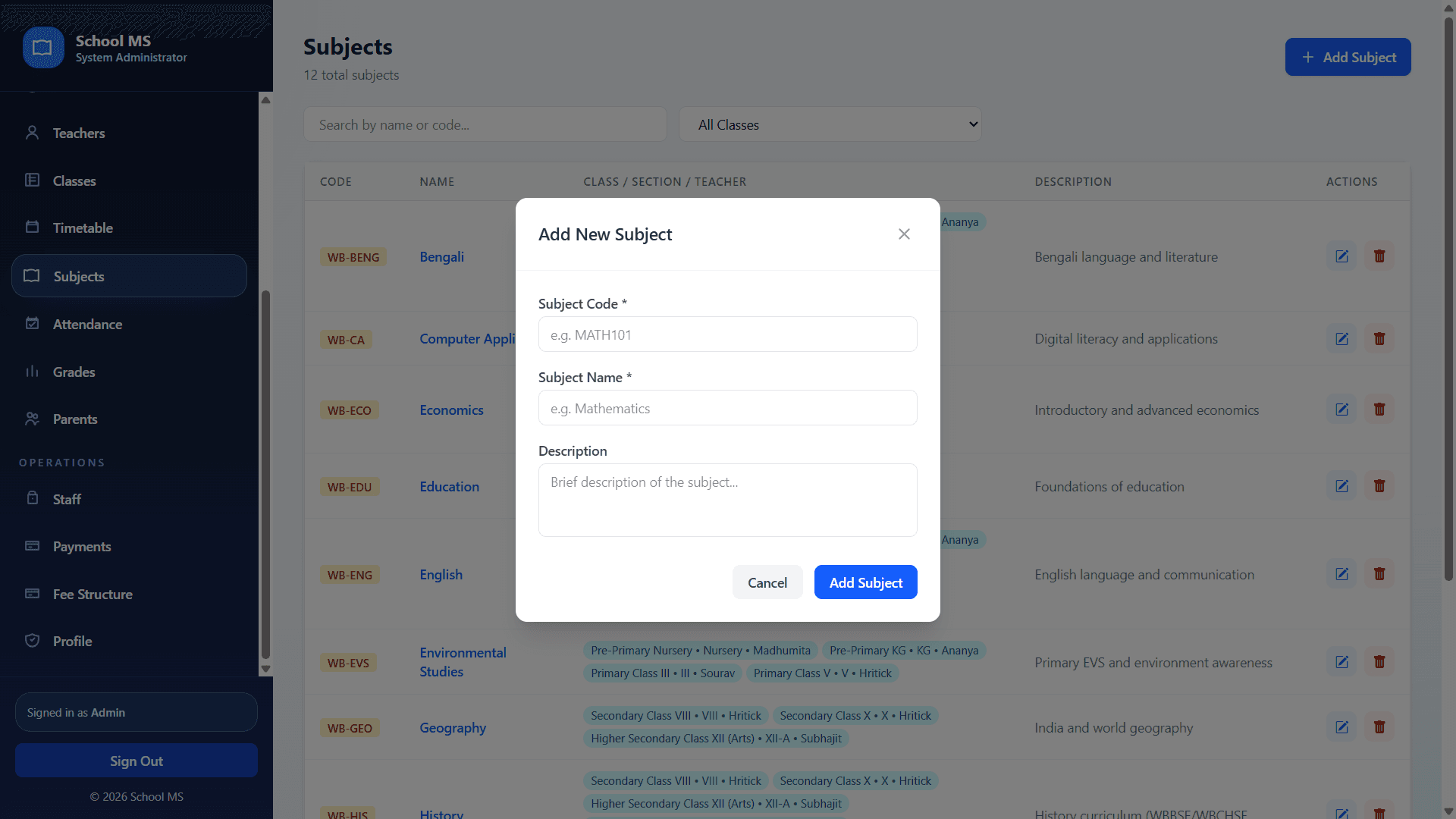
  3. 3Open Add New Subject whenever a new curriculum item or code needs to be introduced.
  4. 4Review teacher assignment labels after changes so routines and grade entry stay connected properly.

Practical tips

  • Set up classes and subjects before opening attendance or grade entry to users.
  • Keep subject codes short and consistent for report clarity.
  • Map teachers carefully to avoid timetable and grade confusion later.

Visual walkthrough

Primary screenshot with supporting screens arranged for easier reading.

3 shots
Add class modal
Screen 1UI preview
Class setup including teacher mapping and subject assignment.
Subjects list page
Screen 2UI preview
Subject directory with class-section-teacher mappings.
Add subject modal
Screen 3UI preview
Simple subject creation form with code, name, and description.

Assessment

Attendance tracking and grade publishing

Audience: Admin, Manager, Teacher, Parent, Student

Show / hide

Attendance and grade modules turn classroom activity into actionable academic records. They support daily status tracking, filtering by class or date, and structured assessment entry across terms and components.

Status summariesDate and class filtersExam term taggingMarks and grade entry

Recommended flow

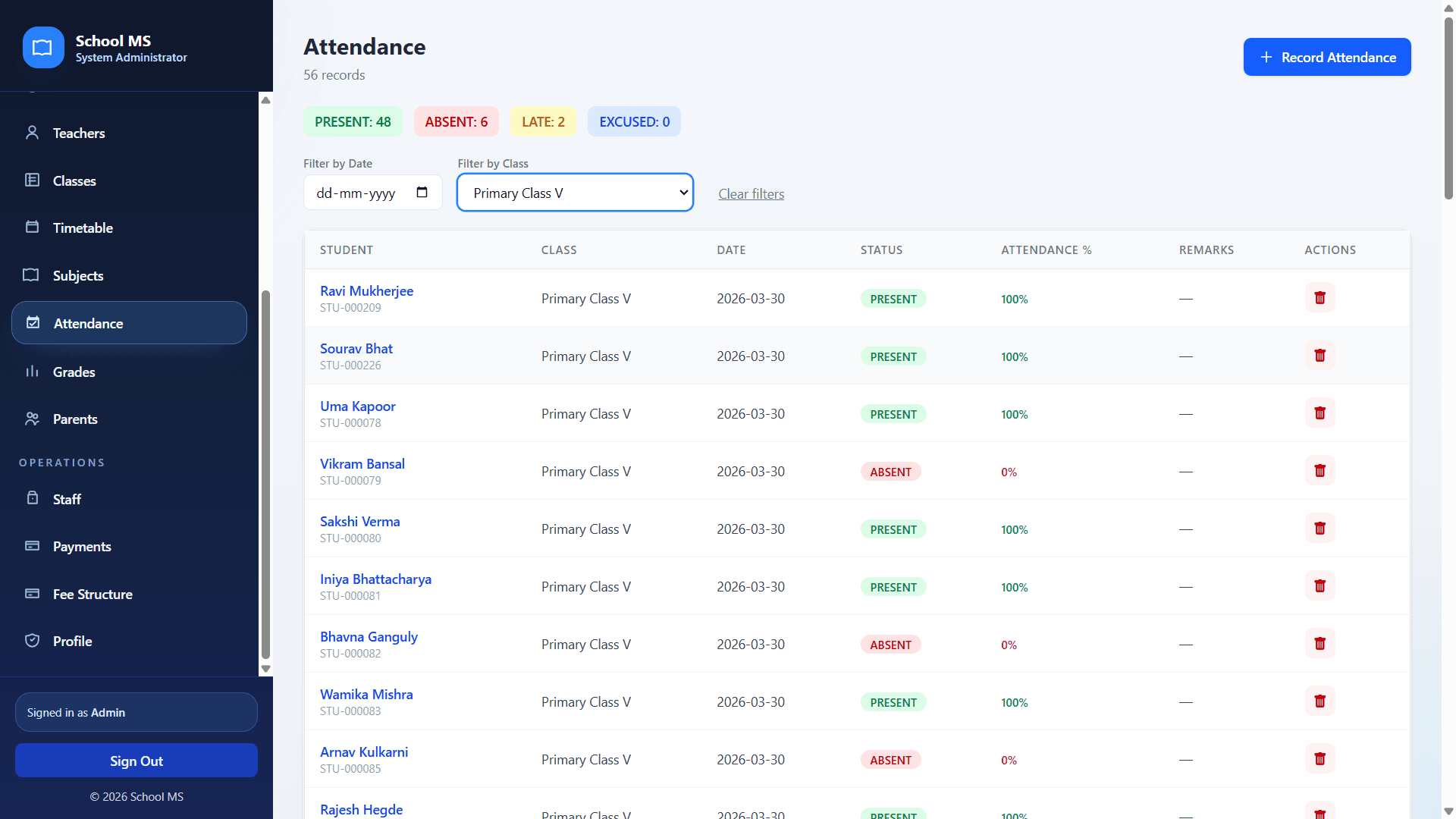
  1. 1Use Attendance to filter records by class and date, then review present, absent, late, and excused status counts.
  2. 2Record accurate remarks so follow-up is easier when attendance dips below expected thresholds.
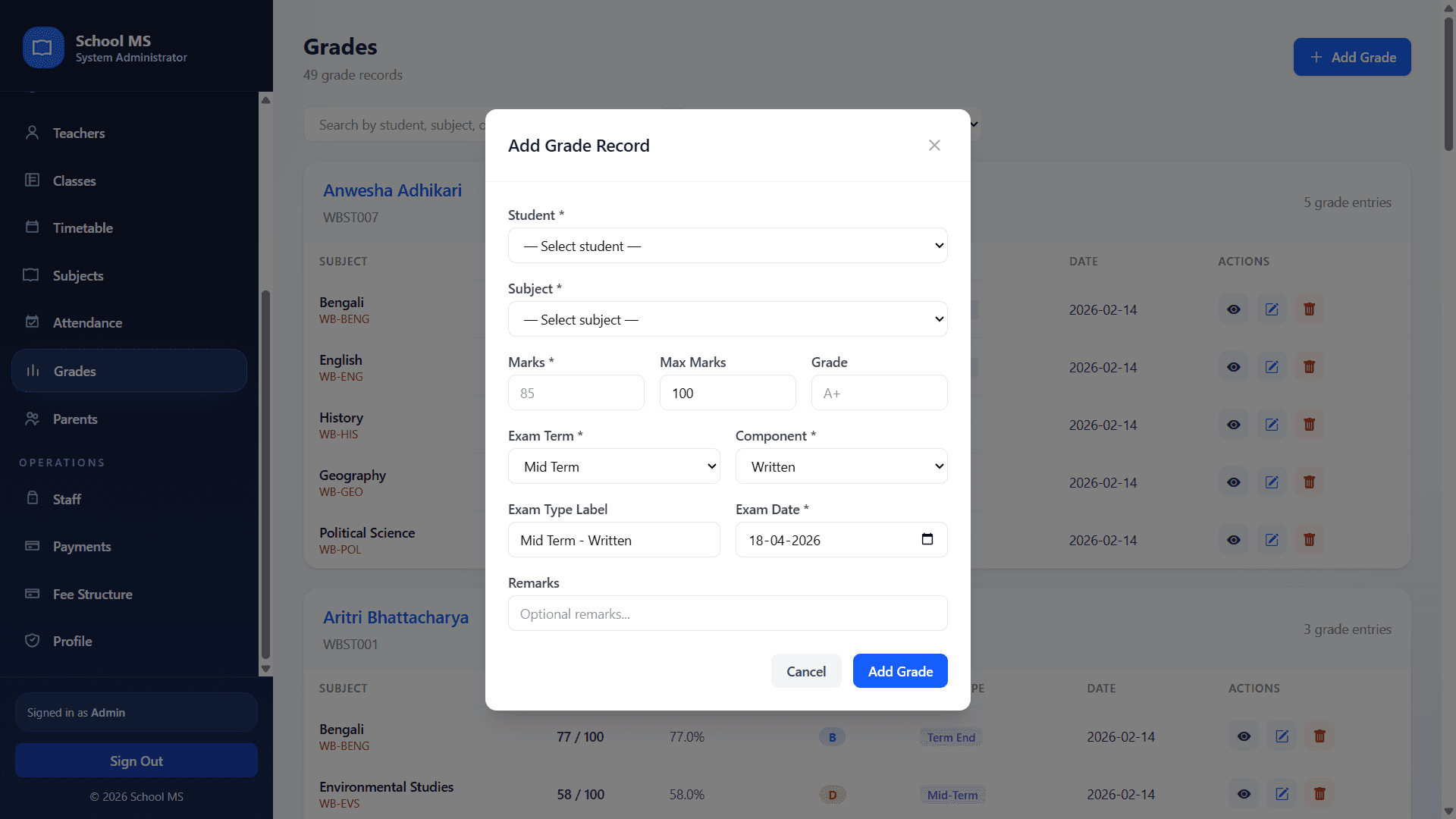
  3. 3Use Add Grade to select student, subject, marks, maximum marks, grade, exam term, component, exam label, and remarks.
  4. 4Parents and students should revisit these modules regularly to monitor progress and performance trends.

Practical tips

  • Attendance should be captured promptly and consistently.
  • Always double-check subject and term before saving grades.
  • Use remarks sparingly but clearly so they add value to the record.

Visual walkthrough

Primary screenshot with supporting screens arranged for easier reading.

2 shots
Attendance page
Screen 1UI preview
Daily attendance register with filters and status chips.
Add grade modal
Screen 2UI preview
Structured grade entry for marks, grade, term, and exam component.

Finance

Fees, billing records, receipts, and fee structure management

Audience: Admin, Manager, Staff, Parent

Show / hide

Financial workflows in EdRAS support session-wise fee tracking, admission and re-admission fees, monthly billing, discounts, receipts, and reusable class fee structures.

Status filtersReceipt actionsNet due previewClass fee templates

Recommended flow

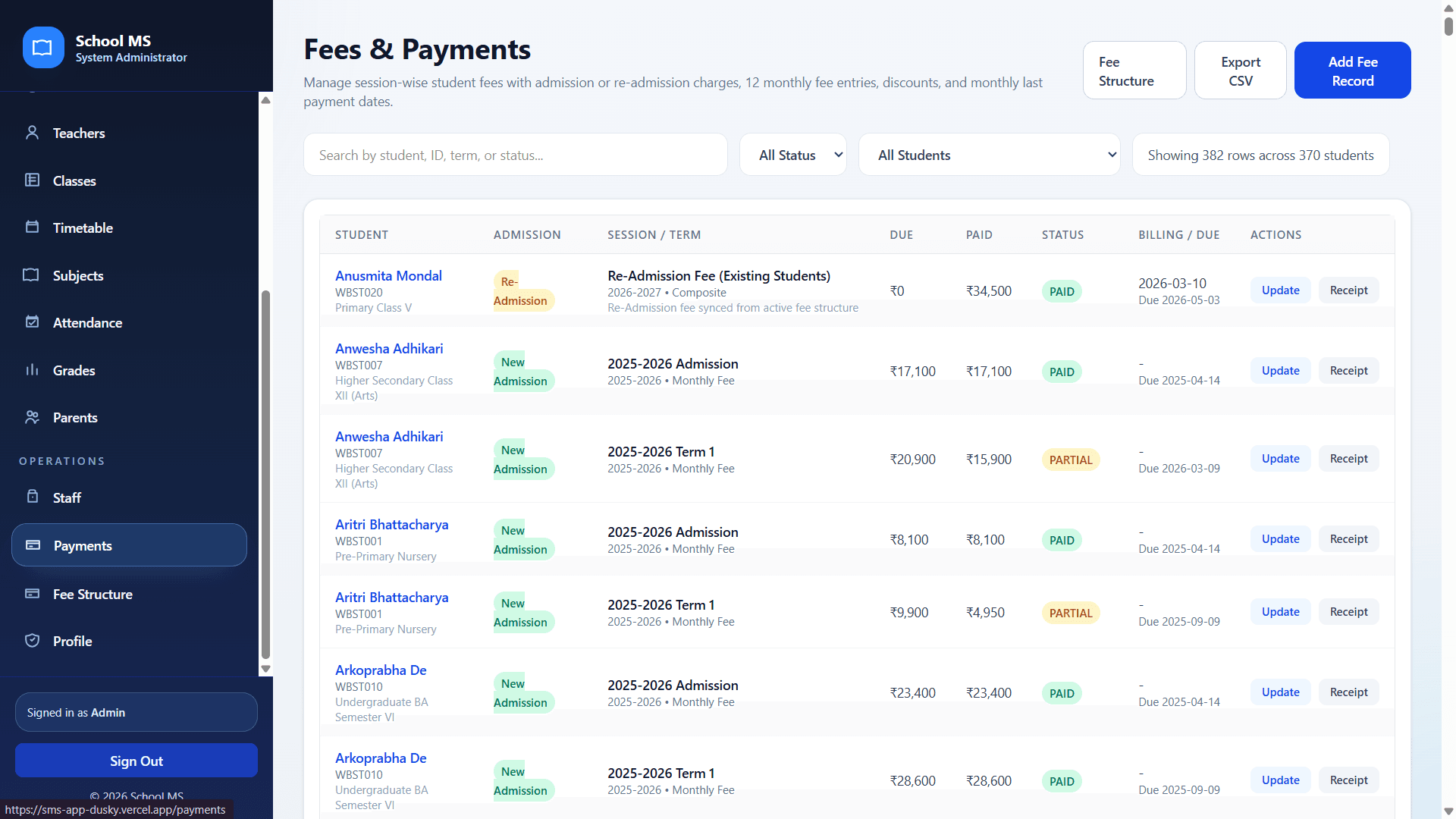
  1. 1Open Fees and Payments to search by student, ID, term, or fee status such as Paid or Partial.
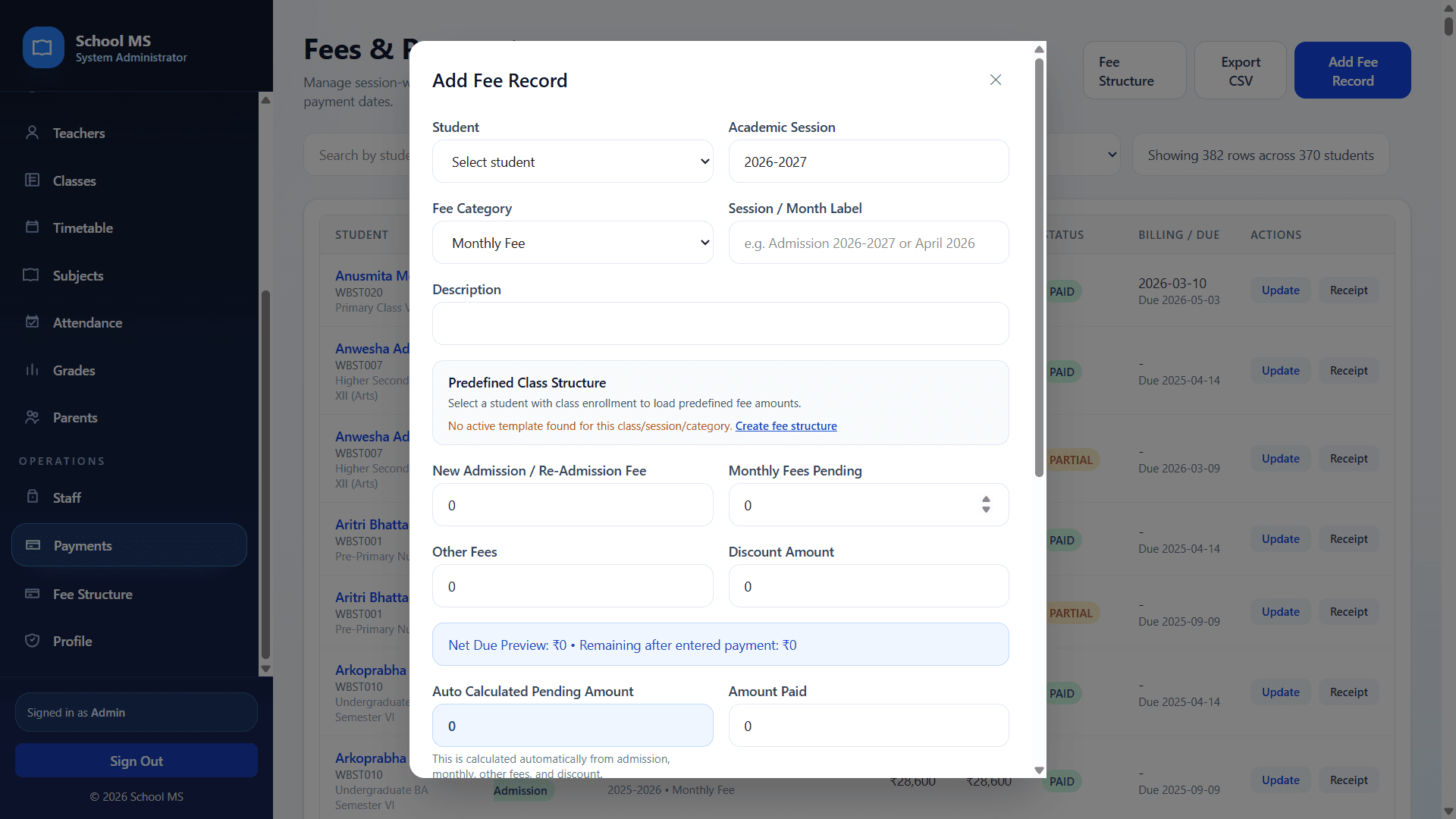
  2. 2Use Add Fee Record to choose the student, academic session, fee category, description, pending amount, discount, and payment values.
  3. 3Review the net due preview before submitting any billing update.
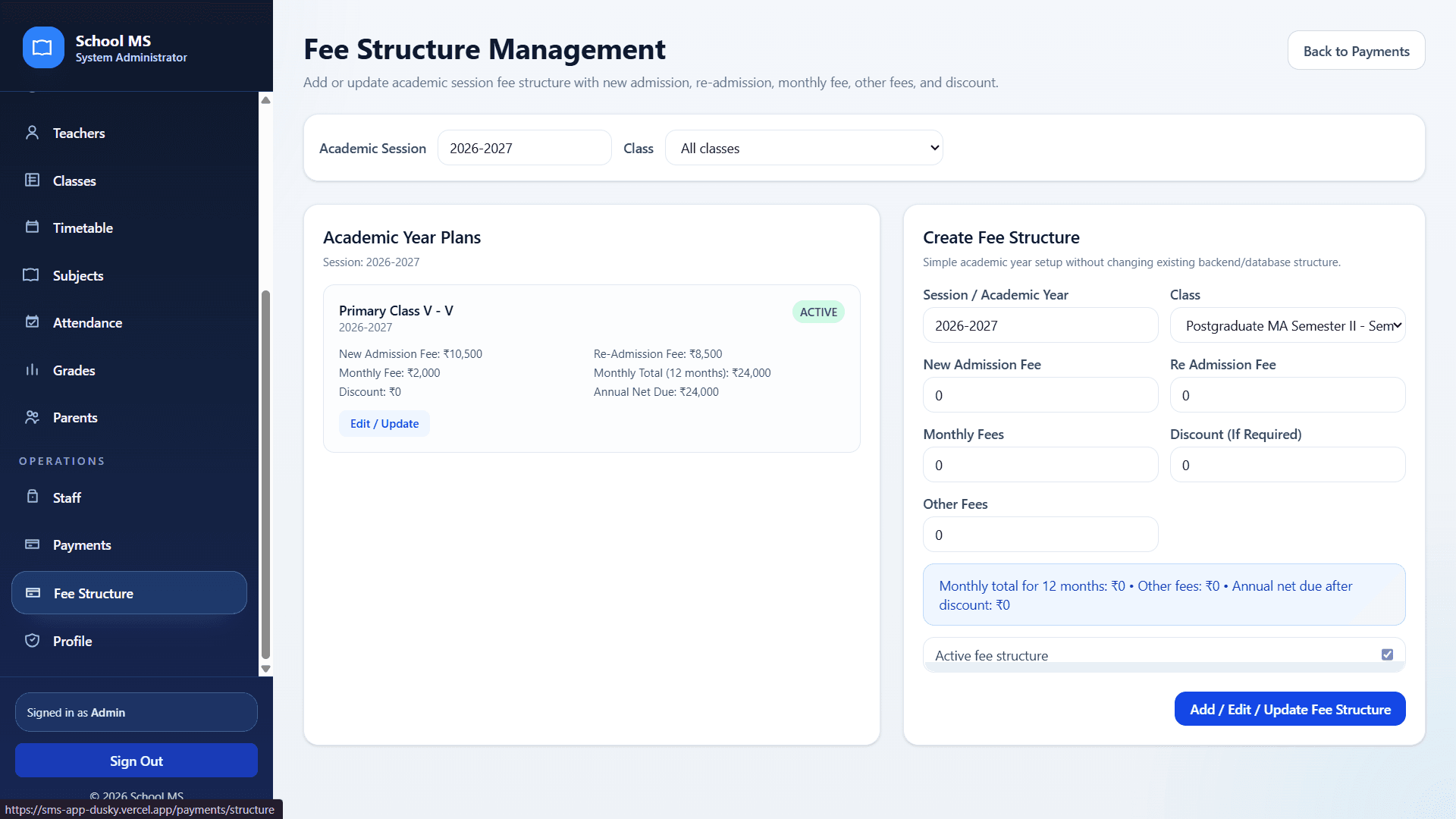
  4. 4Maintain the Fee Structure screen so future admission or monthly records can auto-load cleanly for each class.

Practical tips

  • Keep the fee structure updated once per academic session.
  • Use receipt actions only after verifying the final paid amount.
  • Parents can use the fee pages to cross-check billing and keep payment history organised.

Visual walkthrough

Primary screenshot with supporting screens arranged for easier reading.

3 shots
Fees and payments page
Screen 1UI preview
Session-wise payment tracking with due, paid, and status columns.
Add fee record modal
Screen 2UI preview
Billing form for admission, monthly fees, discounts, and payment updates.
Fee structure management page
Screen 3UI preview
Annual class fee templates and update controls.

Communication and calendar

Announcements, holiday calendar, and school-wide updates

Audience: Admin, Manager, Teacher, Parent, Student, Staff

Show / hide

Communication tools help the school deliver notices to the right audience while the holiday calendar keeps closures, optional holidays, and school days clear for everyone.

Audience targetingAnnouncement publishingMonth view calendarHoliday type selection

Recommended flow

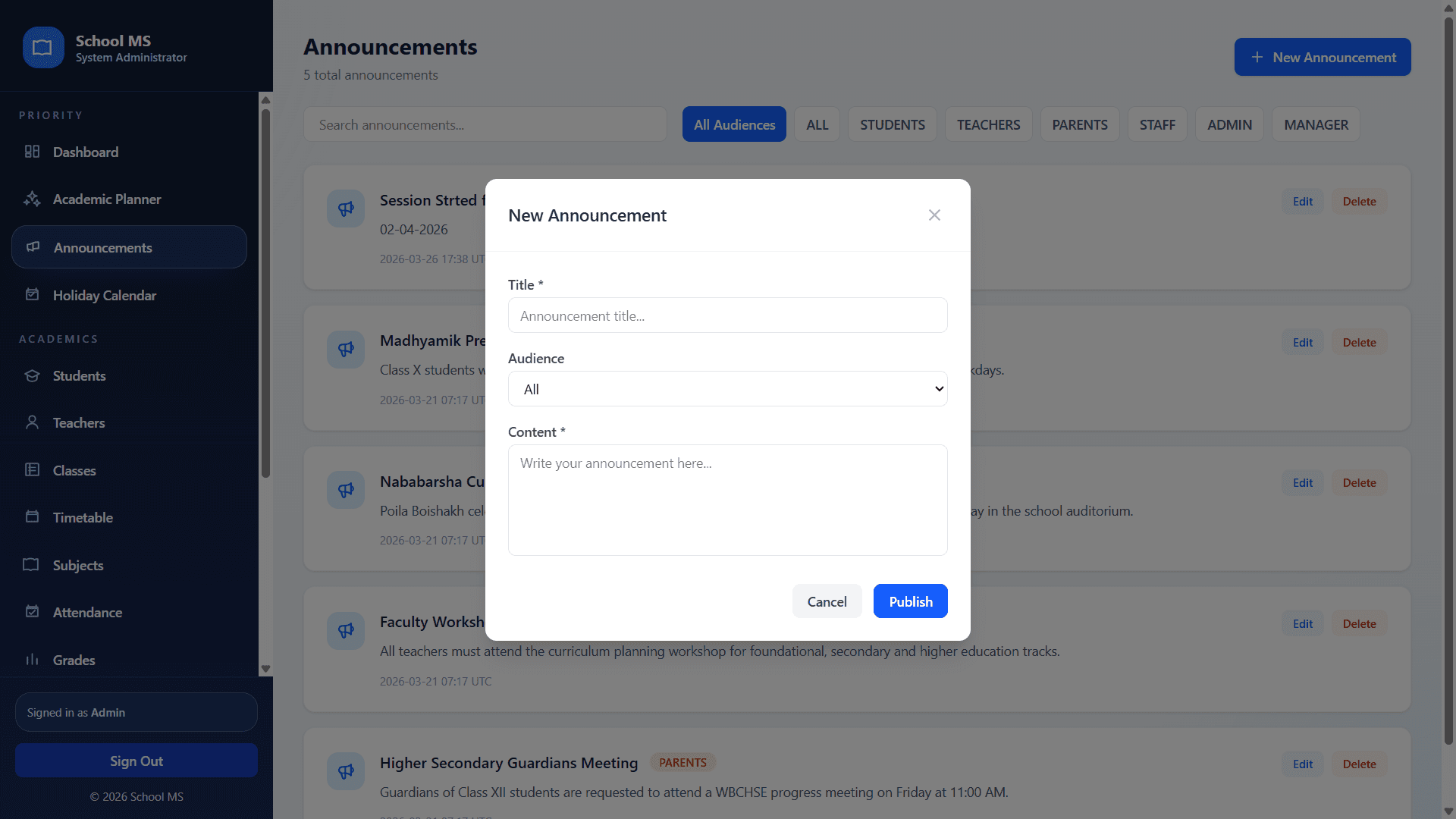
  1. 1Use New Announcement to select the right audience such as All, Students, Teachers, Parents, Staff, Admin, or Manager.
  2. 2Write a clear title and short content that explains the action required and the date.
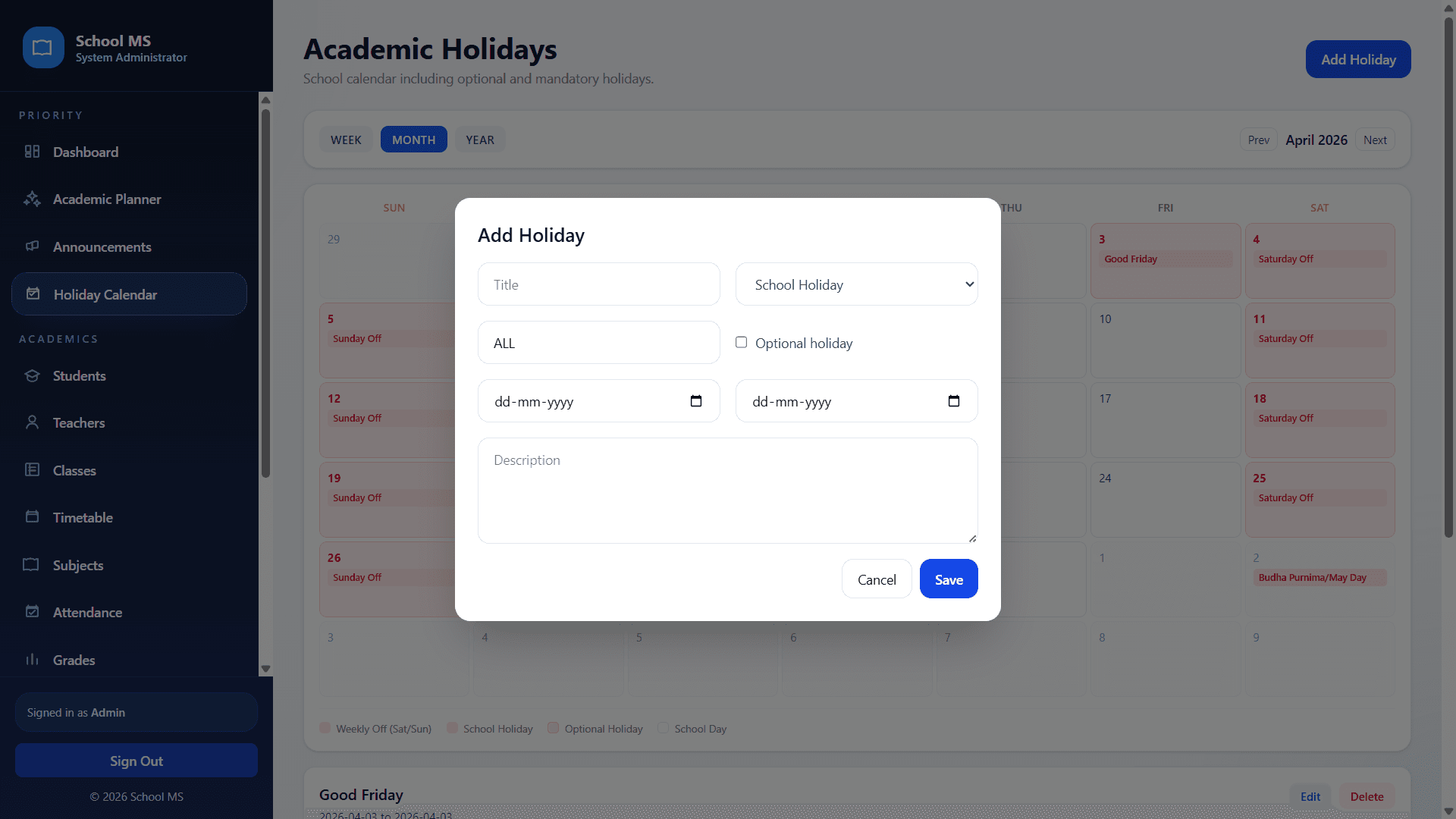
  3. 3Use the holiday calendar to add mandatory or optional holiday ranges with description notes.
  4. 4Ask users to review these sections daily so no one misses a schedule change or event notice.

Practical tips

  • Use audience filters to keep communication relevant.
  • Add holiday notes early so transport and staffing can be planned.
  • Keep announcement titles short and action-driven.

Visual walkthrough

Primary screenshot with supporting screens arranged for easier reading.

2 shots
New announcement modal
Screen 1UI preview
Audience-targeted announcement publishing flow.
Add holiday modal
Screen 2UI preview
Calendar update form for school holidays, optional holidays, and notes.

Access overview

Role and module access matrix

RoleMain focusMost-used modules
AdminPlatform setup and complete oversightDashboard, Planner, Students, Teachers, Classes, Holidays, Announcements, Payments
ManagerDaily operations and coordinationDashboard, Parents, Staff, Attendance, Fees, Announcements
TeacherRoutine, attendance, grades, communicationTimetable, Attendance, Grades, Students, Announcements
StaffOffice support and data maintenanceStudents, Parents, Staff, Payments, Profile
ParentChild monitoring and billing follow-upDashboard, Attendance, Grades, Fees, Announcements, Timetable
StudentDaily schedule and academic progressDashboard, Timetable, Attendance, Grades, Announcements

Printable handover

How to share as PDF or hard copy

  1. 1. Open this guide page and review the sections you want to include.
  2. 2. Click the Print / Save as PDF button at the top of the page.
  3. 3. Choose Save as PDF for digital sharing or your printer for a physical copy.
  4. 4. Keep background graphics enabled for the premium cover look, or disable them for a lighter print.